Guide · 2 of 11
The welcome, screen by screen
Set up your account in ten short screens: who you are, your rates, your invoices, how you get paid and your first client.
Each screen saves when you press Next, so closing the tab loses nothing. You can change every answer later; each screen below says where. You can skip 5, 7, 8 and 10. The rest take a default if you leave them.
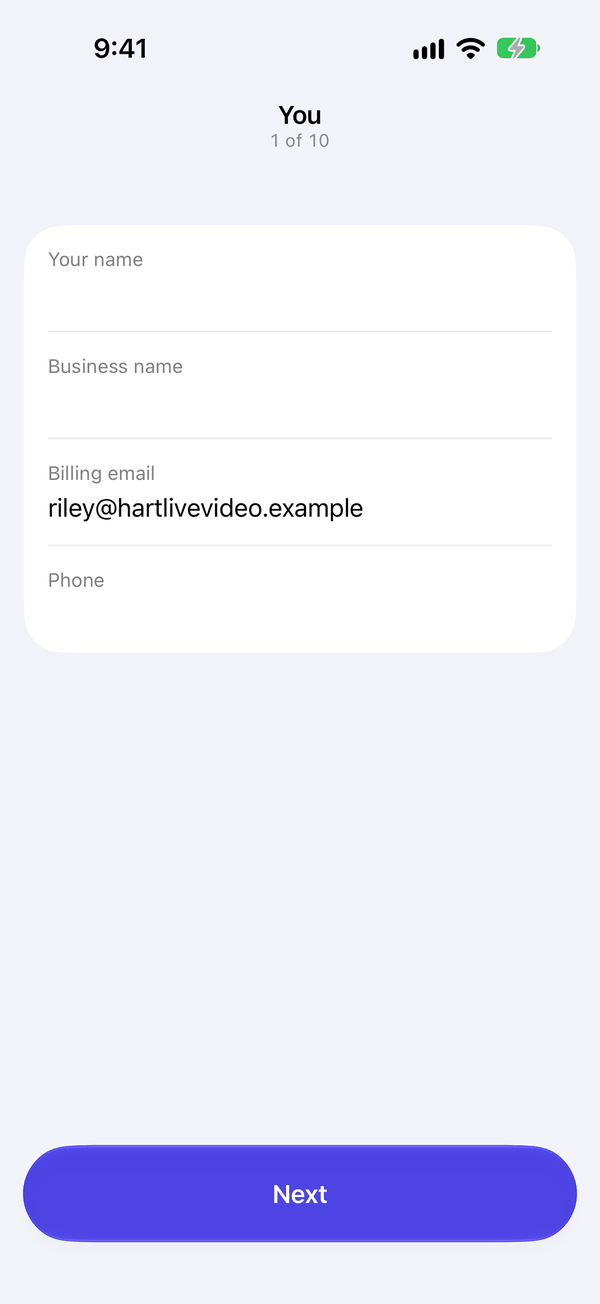
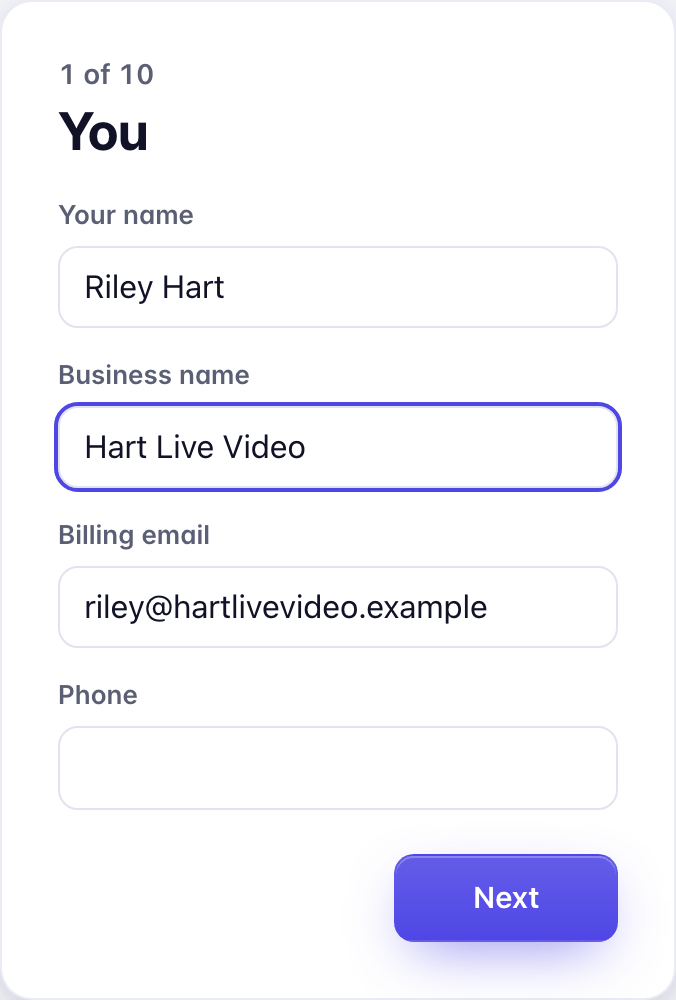
1 · You
Your name, Business name, Billing email (it starts as the email you signed up with) and Phone.
Later: Settings › Business details.
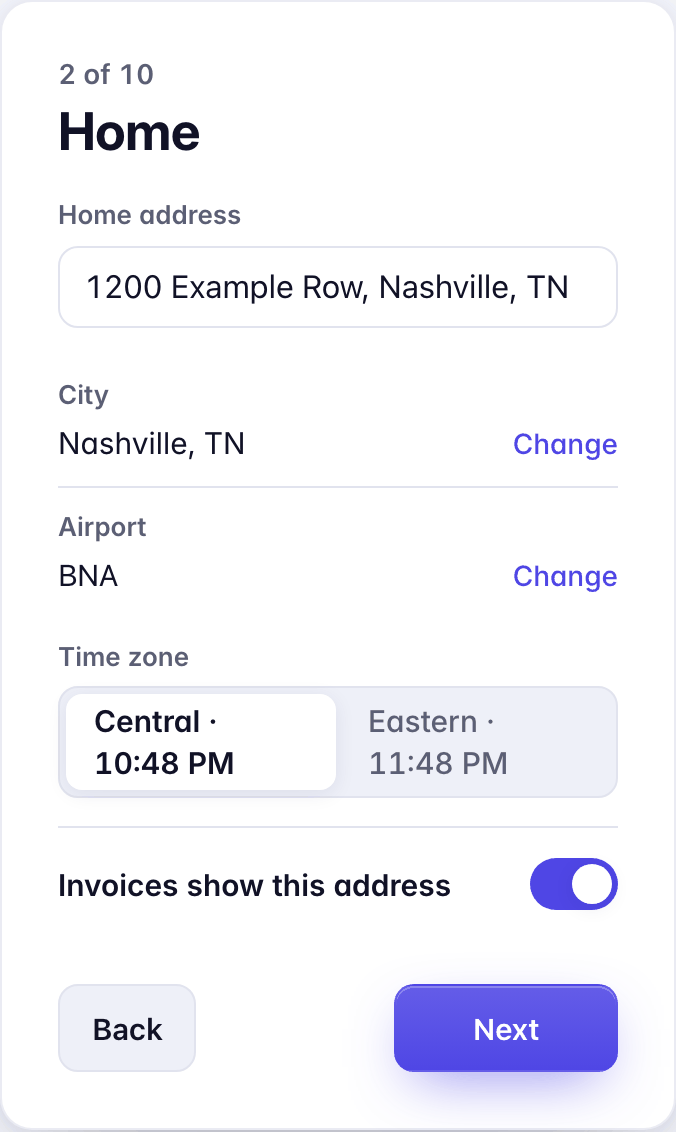
2 · Home
Type your Home address and press Next. GigCue looks it up and fills in your City, nearest Airport and Time zone. Change corrects the city or airport; pick the time zone if your state has two. Invoices show this address stays on until you give a different Remit-to address.
Later: Settings › Business details. Your home state for taxes is in Money › Taxes › Tax profile.
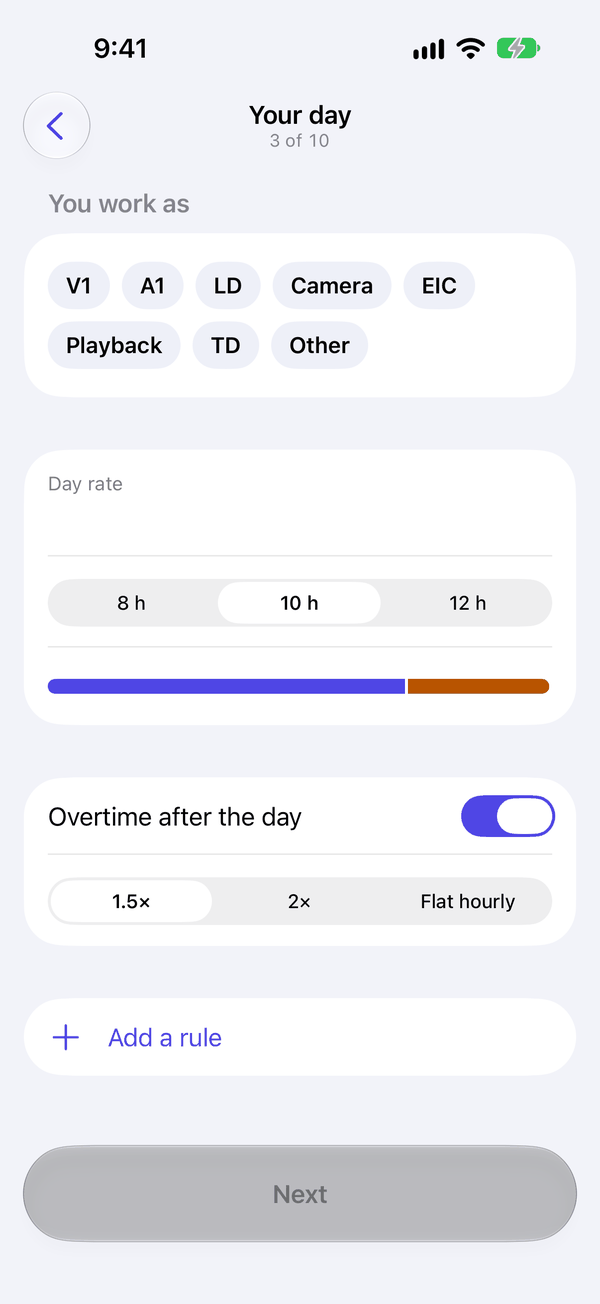
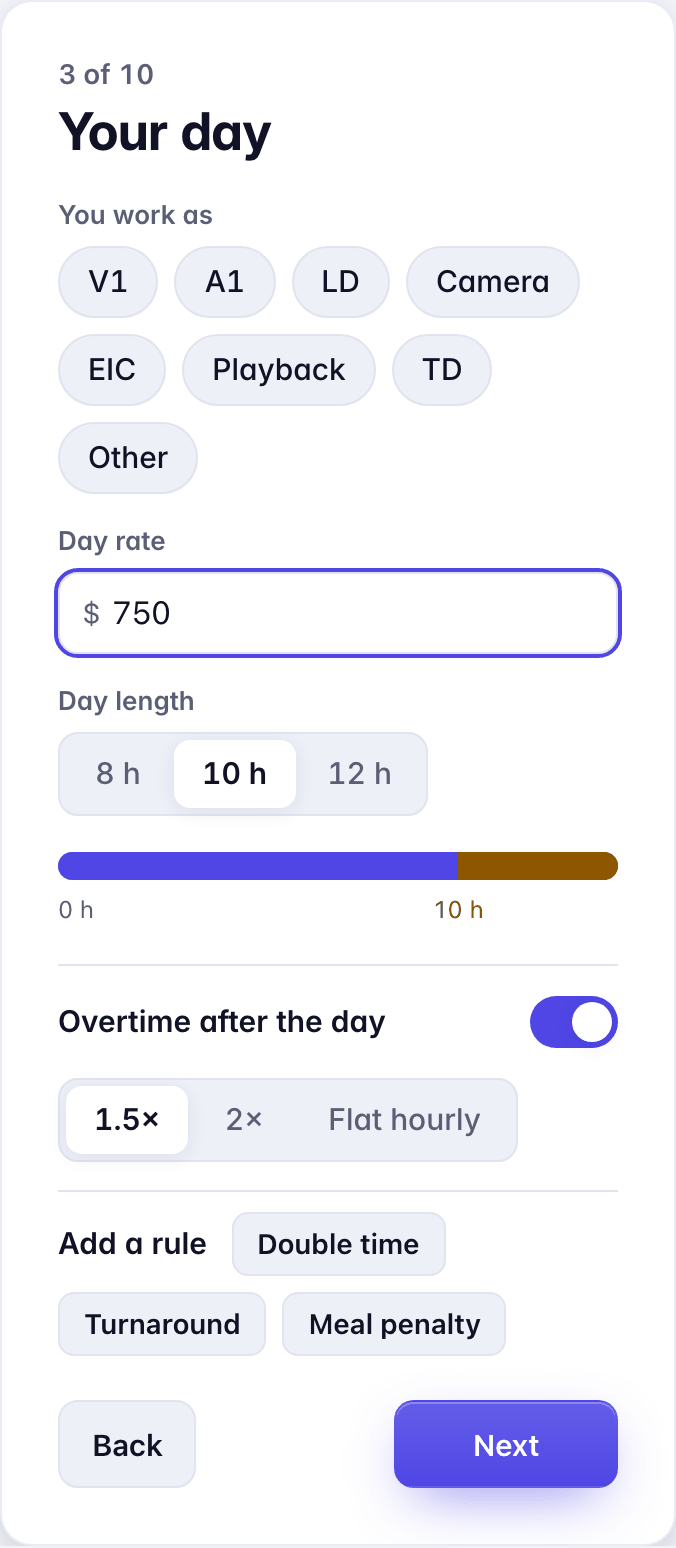
3 · Your day
You work as: pick your roles, or Other to name one. Then your Day rate, Day length (8, 10 or 12 hours) and Overtime after the day at 1.5×, 2× or a flat hourly rate. Add a rule adds double time, turnaround or a meal penalty.
Later: Settings › Rates, and your roles in Settings › Roles and kit.
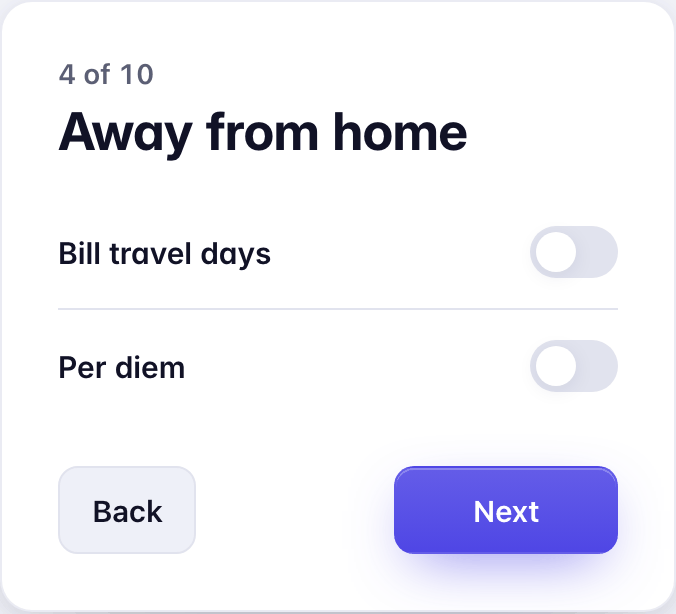
4 · Away from home
Bill travel days, as a percent of your day rate, and Per diem at the GSA rate for the city. Leave either off if your clients don't pay it.
Later: Settings › Rates.
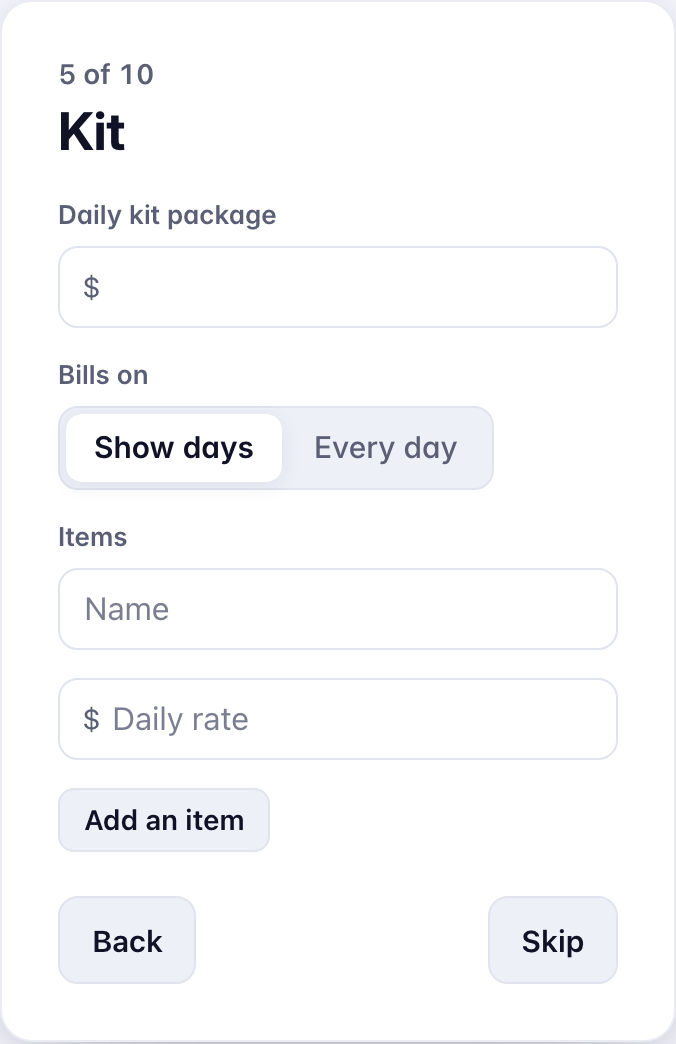
5 · Kit
A Daily kit package, billed on show days or every day, and single Items with a daily rate. Skip if you don't rent out gear.
Later: Settings › Rates for the package, Settings › Roles and kit for the items.
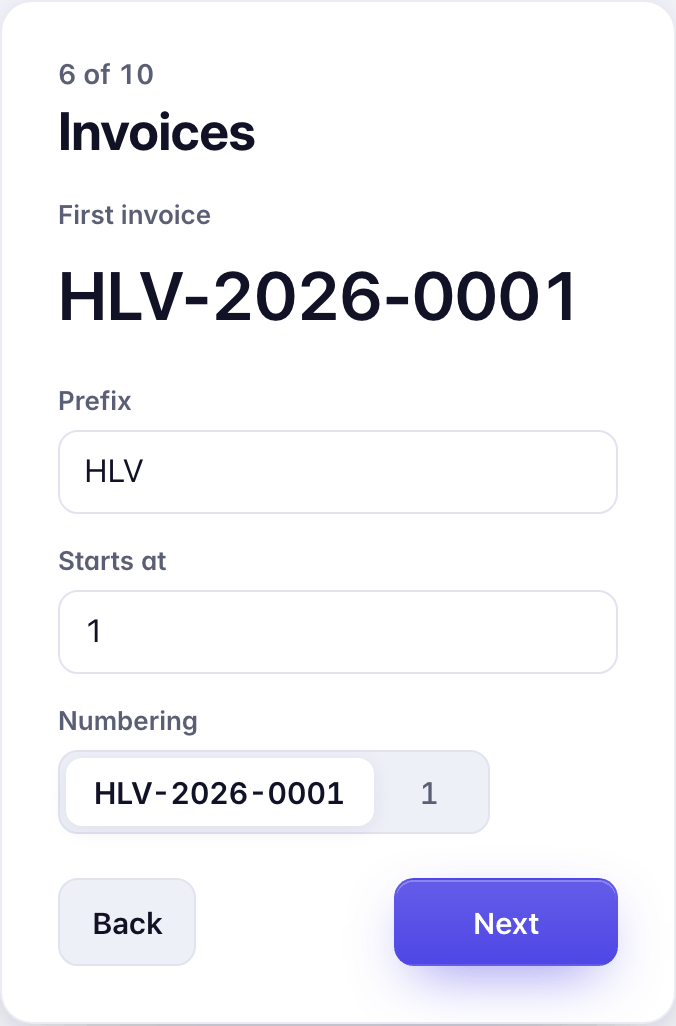
6 · Invoices
Your invoice numbers. The Prefix starts as your business's initials; First invoice shows the number your first invoice gets.
Later: Settings › Invoices.
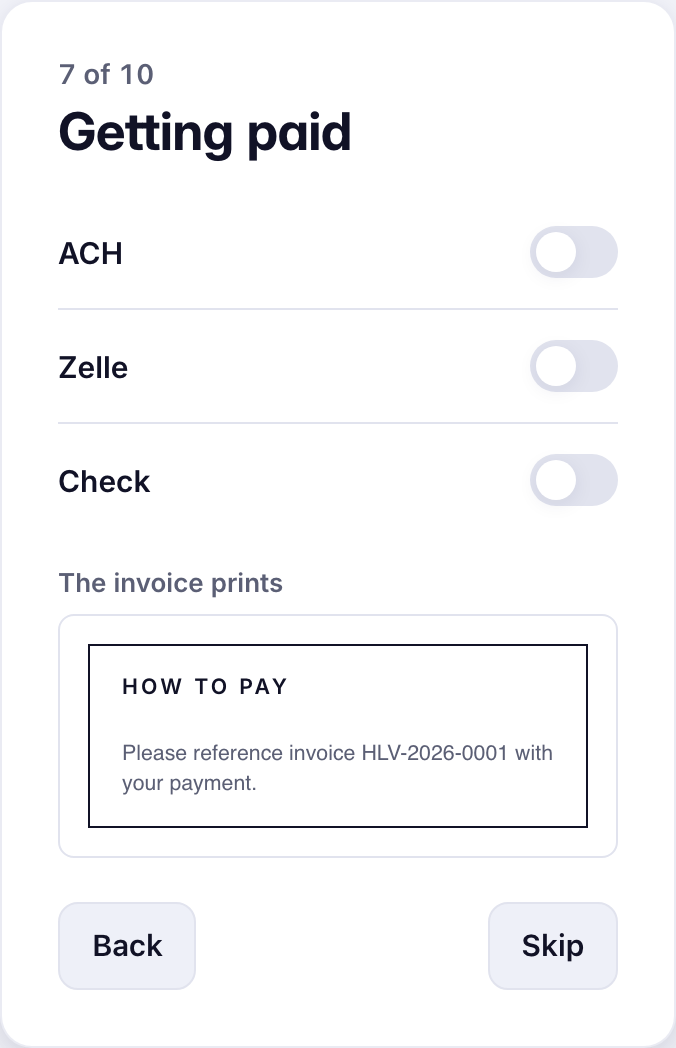
7 · Getting paid
How clients pay you: ACH, Zelle or Check, each with its details. Under them, The invoice prints shows the How to pay box as your invoices print it. Skip to do it later.
Later: Settings › Getting paid.
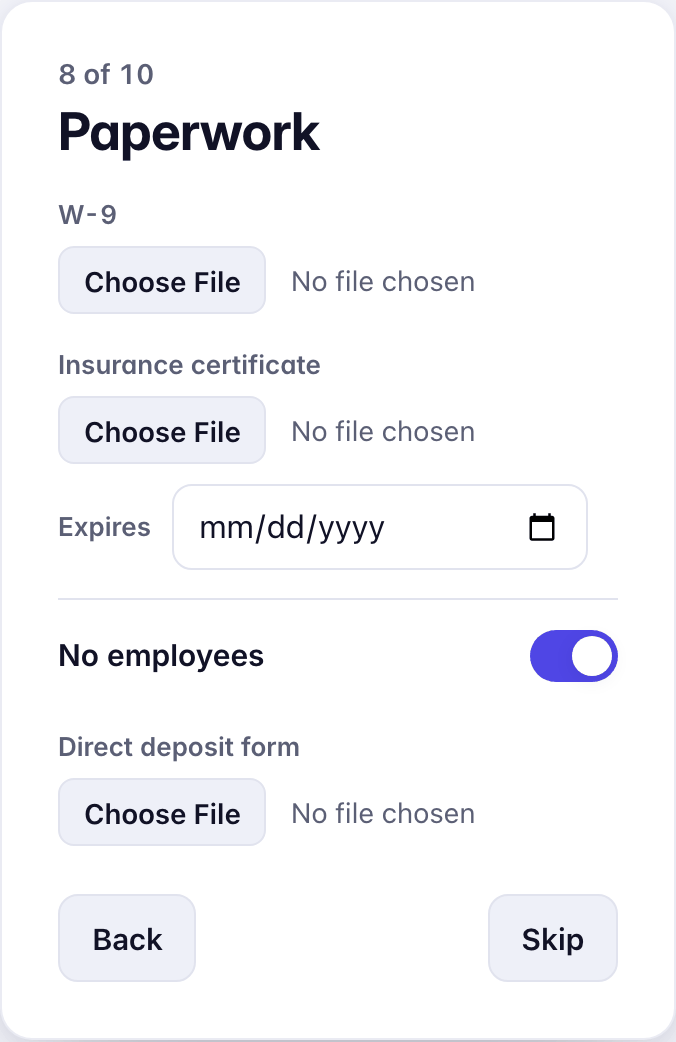
8 · Paperwork
Upload your W-9, your Insurance certificate with the date it expires, and a Direct deposit form if clients ask for one. With No employees on, there's no workers' comp certificate to add. Skip if the files aren't to hand.
Later: Clients › Paperwork. See Paperwork.
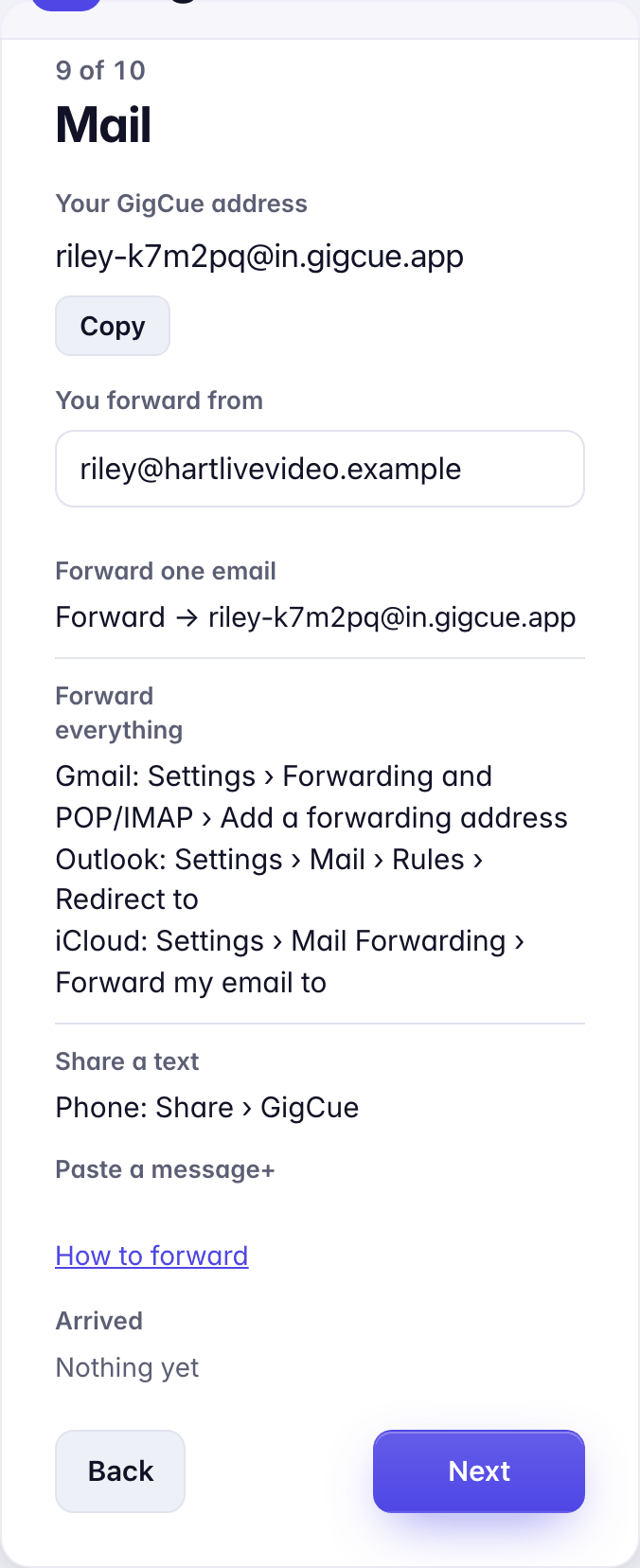
9 · Mail
Your GigCue address, with Copy, and You forward from: the addresses you'll forward mail from. Under them, the three ways to get mail in. The screen has its own page: Your address, and forwarding.
Later: the address in Settings › Mail and texts; You forward from in Settings › Privacy.
10 · First client
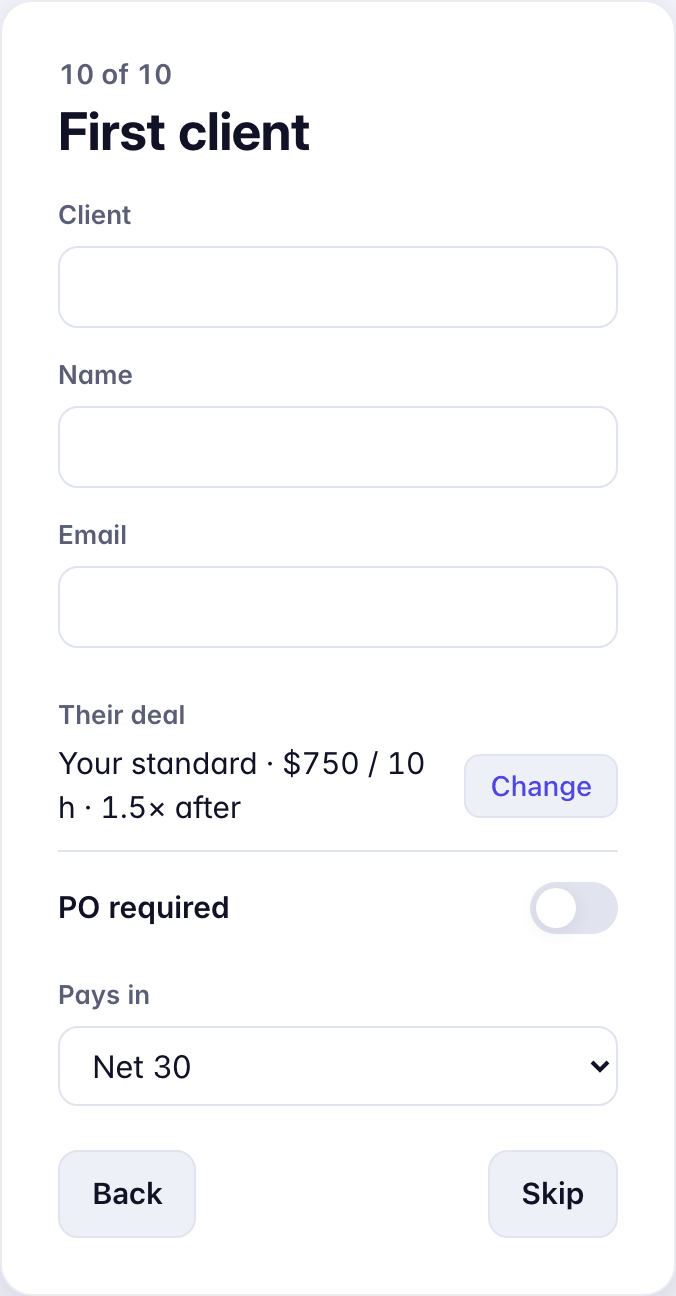
One client you work for: the company, a contact's Name and Email, Their deal (your standard deal unless you Change it), PO required and Pays in. Skip to add clients as their mail arrives. Done finishes.
Later: Clients, then the client.
Back, and coming back later
Back goes to the screen before and changes nothing. Leave partway and Today sends you back to the first screen you haven't saved, until you press Done.
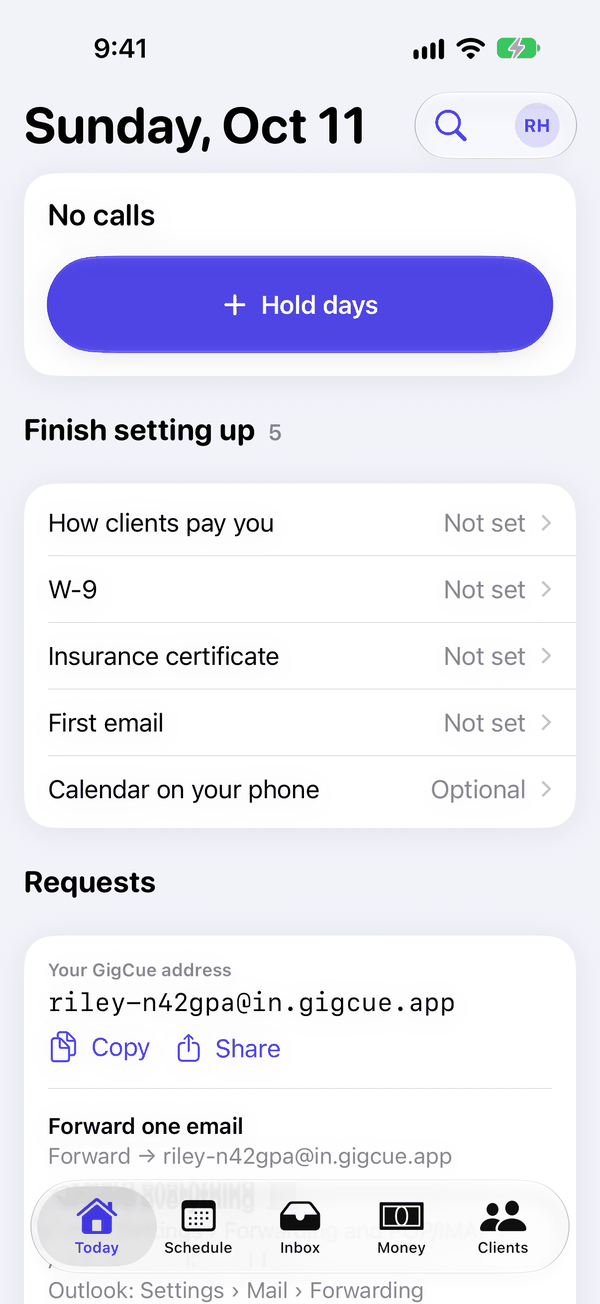
Finish setting up
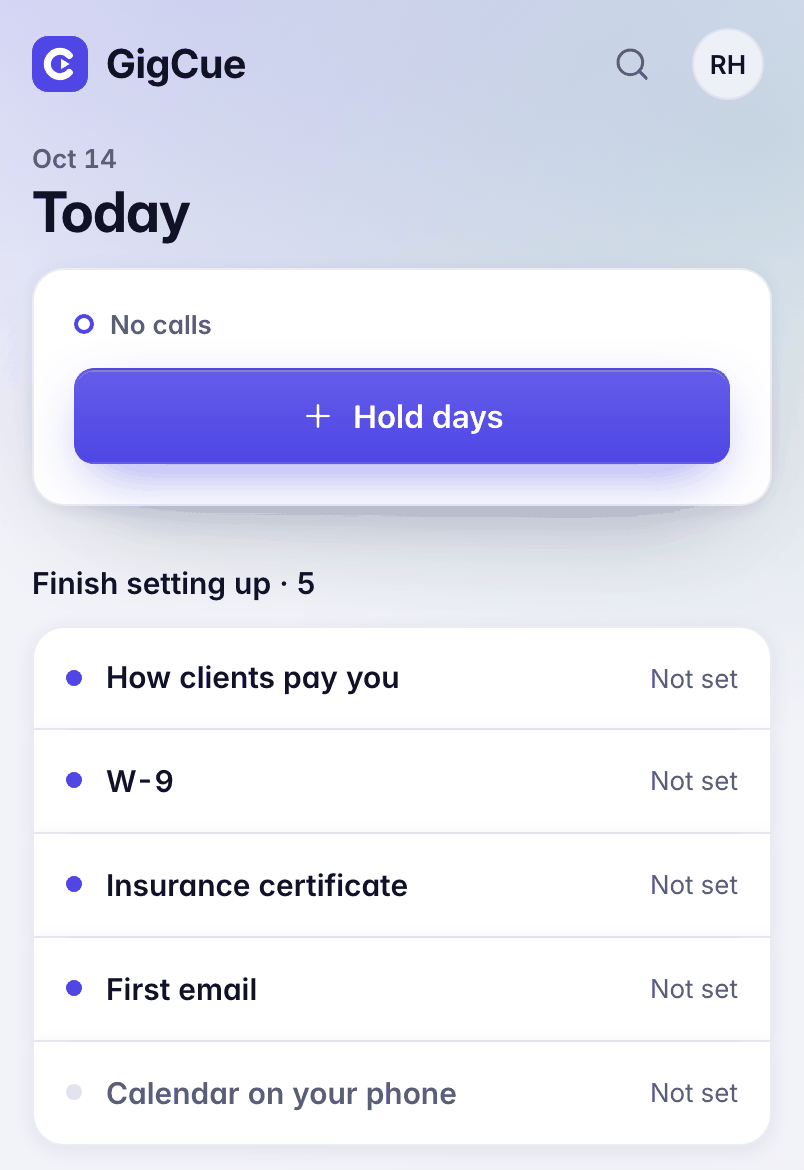
After Done, Today opens. Anything you skipped is listed at the top under Finish setting up: How clients pay you, W-9, Insurance certificate. Each row opens its screen and goes once it's done. First email stays until anything reaches your GigCue address. Calendar on your phone stays until a calendar app reads your GigCue calendar (Settings › Calendar).
Show me around
Show me around sits beside Finish setting up, and in the menu under your initials, under Guide. On an empty account it first adds a demo business: two clients, a run last week with its invoice half paid, a hold next week, and a request with a reply waiting in To send. Every one of those rows says Demo, and the reply never sends. Then the tour stops once in each place, with what the place is for and one thing to try. When you're ready to start yours, press Clear the demo at the top of Today: it takes out the demo's rows and nothing else, and says so if something of yours is on one of them. On an account with work in it, the tour shows your own.
The same ten on the phone
The phone has the same ten screens in the same order. Start on one and finish on the other.