Guide · 5 of 11
A request becomes a job
Answer a booking request in one press: GigCue reads the dates, checks your calendar and writes the reply for you to send.
The Inbox
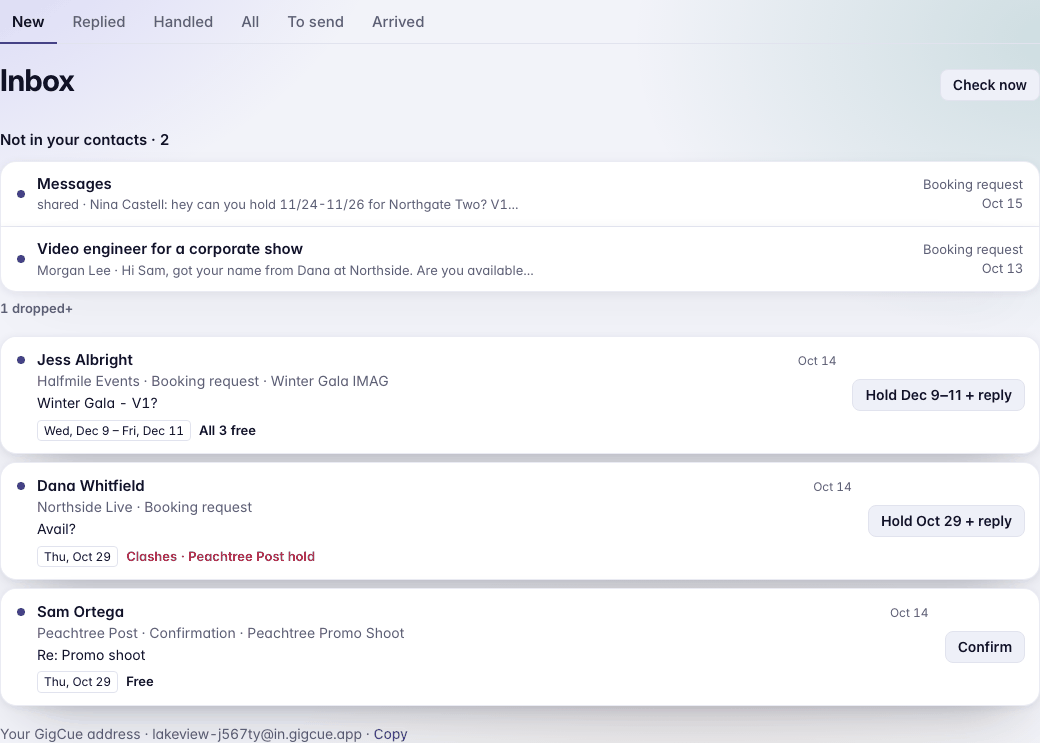
Inbox has six lists: New, Replied, Handled, All, To send and Arrived. New is where requests wait for you.
Each request in New shows who sent it and their client, what kind it is (a booking request, a confirmation), the job it's about if there is one, the days it asks for, and whether you're free: Free, All 3 free, or Clashes with what's in the way. The row's button is the likely next step, such as Hold Dec 9–11 + reply or Confirm. Dismiss puts a request away.
Requests from people who aren't your contacts yet sit at the top, under Not in your contacts.
What the request page shows
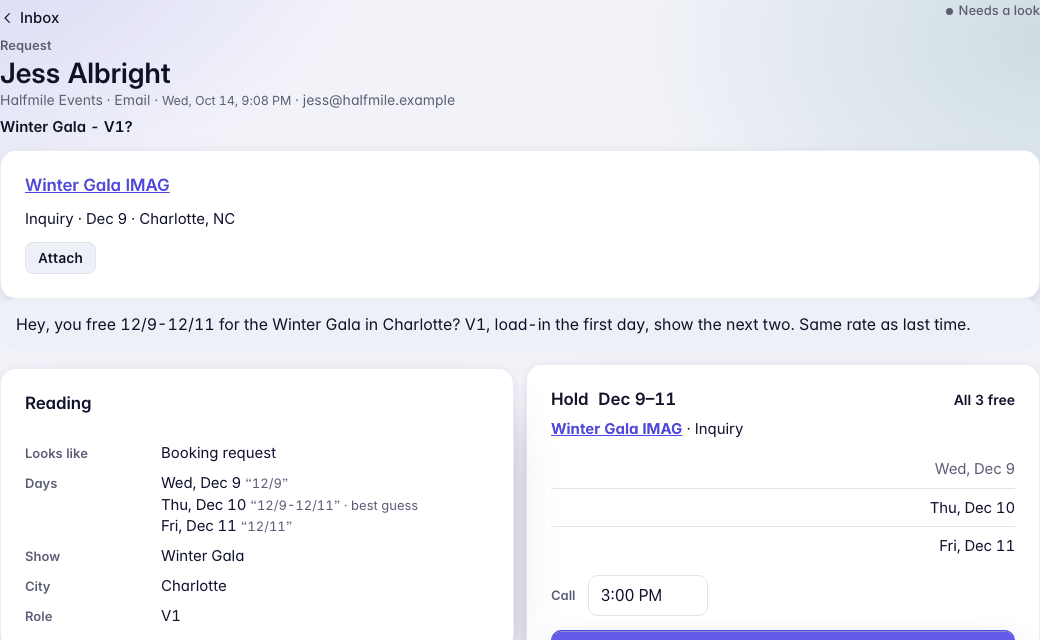
Open a request to see the message and what GigCue read from it. At the top is the job it's about, if there is one, with Attach to file the message on it. Under the message are the days asked for, each checked against your calendar, with the call.
Then your choices:
- Hold … + reply holds the days and writes a reply.
- Hold only holds the days and writes nothing.
- Write a reply, then Draft this reply, for anything else.
- Make a job starts a new job from the request: the client, a title, and the days on a calendar.
- Not a request, if GigCue read it wrong.
Reading, at the foot, shows what GigCue took from the words: the kind of request, each day with the words it came from, the call, the city and the role.
Hold + reply
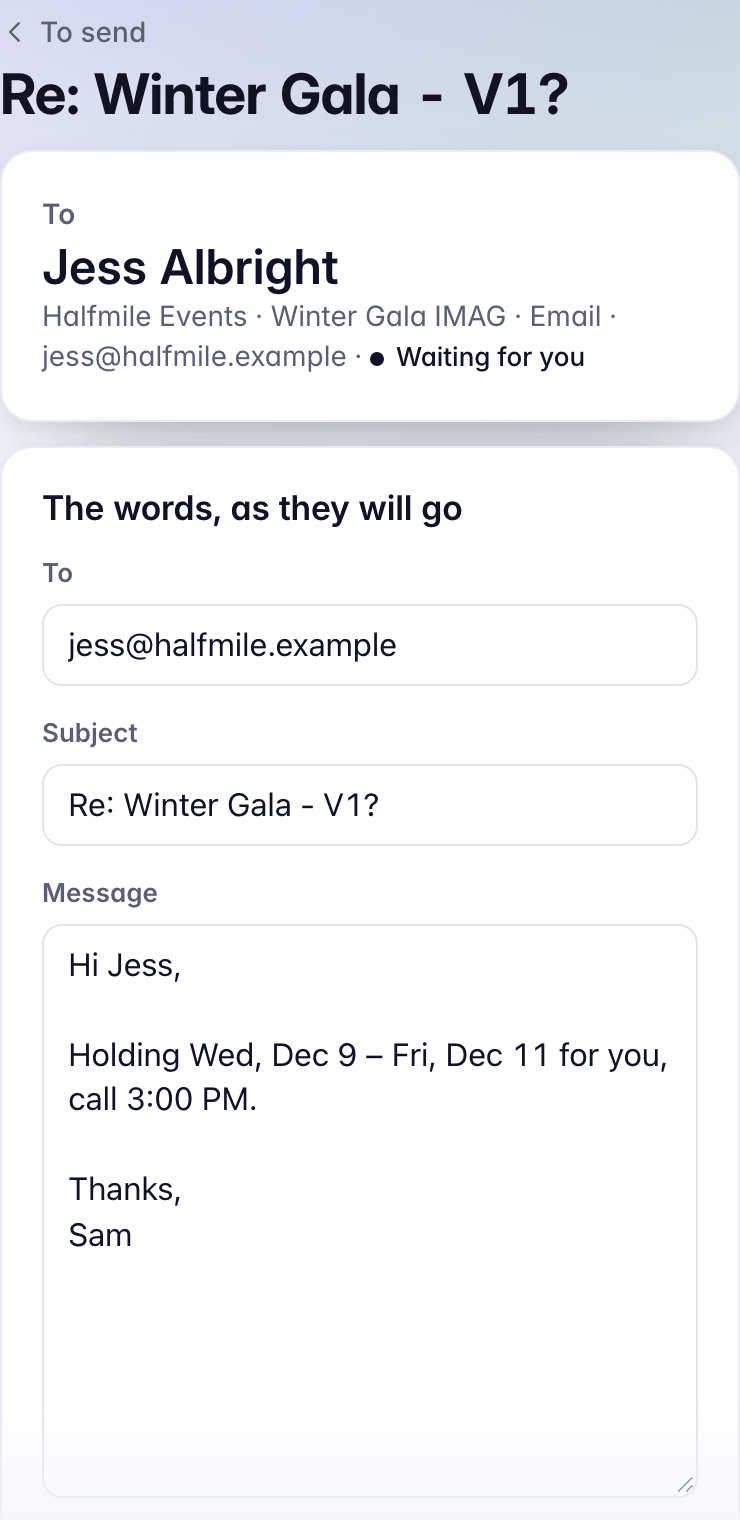
Hold … + reply puts the days on hold (on the job GigCue found, or a new one) and writes a short reply saying so. The reply opens in To send, where you can change any of it before it goes.
Confirm, with the PO
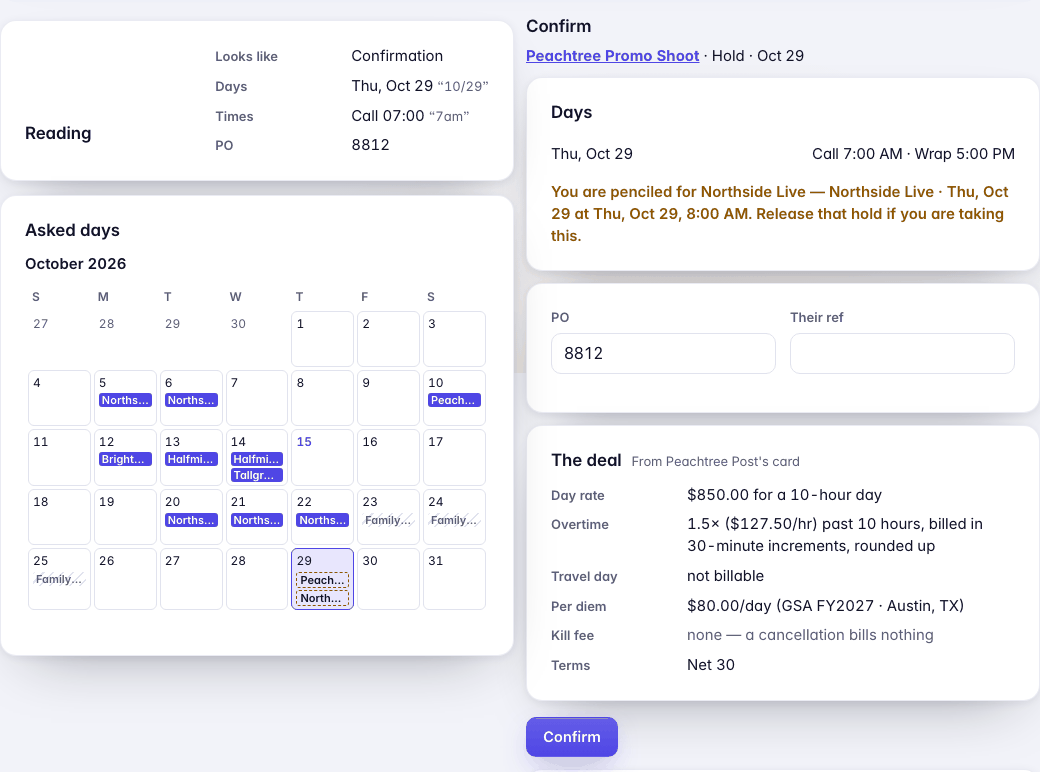
When a booker confirms, the request offers Confirm. It shows the job and its days, with a new call time if the message moved it; the PO and Their ref, filled in when the message gives them; and The deal read back from the client's card: day rate, overtime, travel day, per diem, kill fee and terms. Check it, then press Confirm.
Someone new
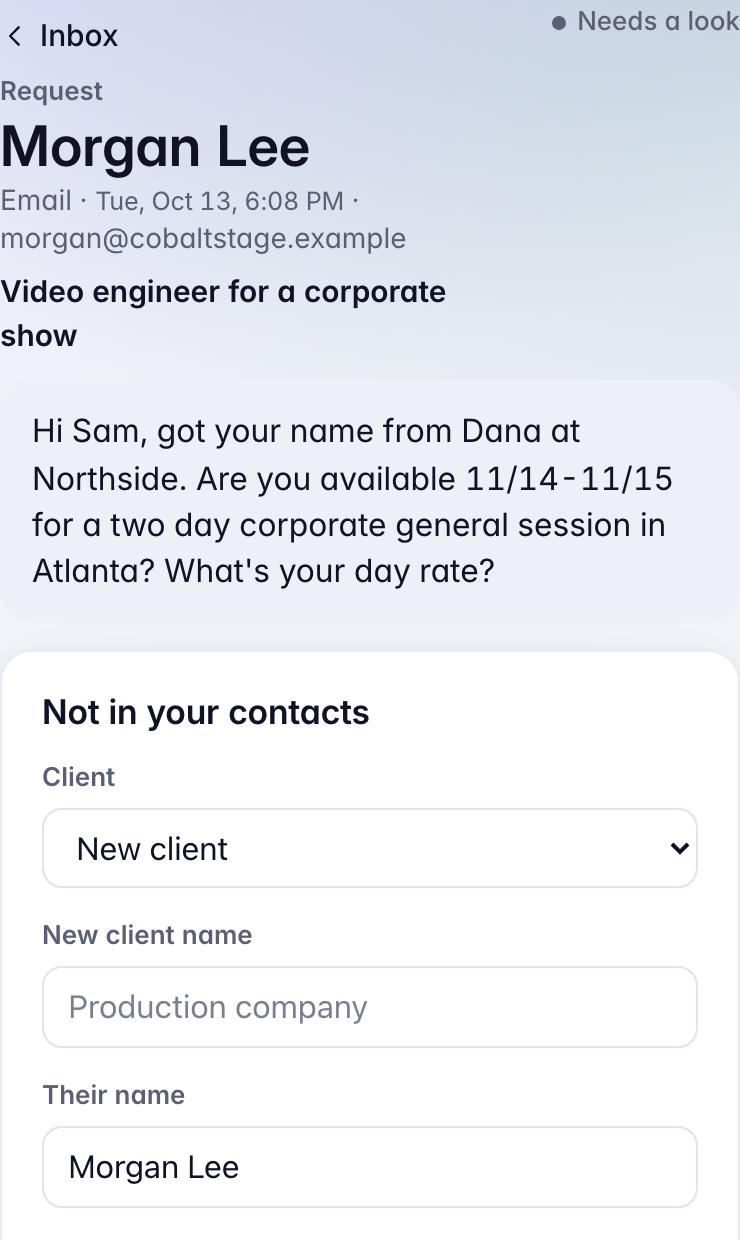
A request from someone new shows Not in your contacts. Choose New client and type the company, or pick one you have; then their name and what they do. Press Add as client. From then on their mail comes in like any contact's.
A text you share from the phone works the same way: pick its client first.
To send
Nothing GigCue writes sends itself. Every reply, invoice email and packet waits in To send until you press Approve and send.
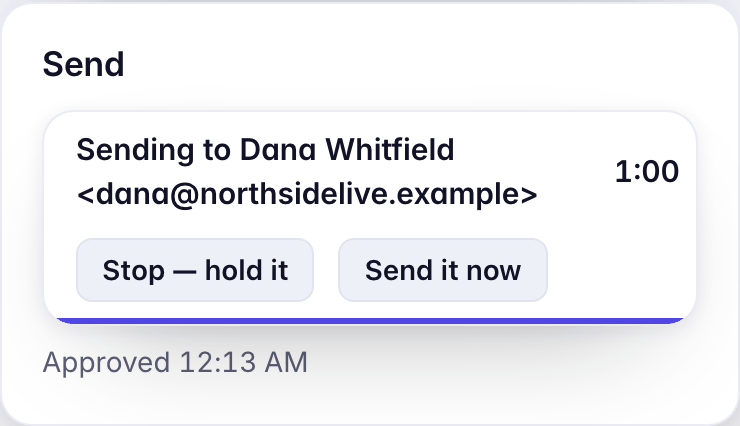
Then you have 60 seconds. Sending to … counts down, with Stop — hold it to take it back and Send it now. Cancel this throws a draft away.