Guide · 10 of 11
The phone
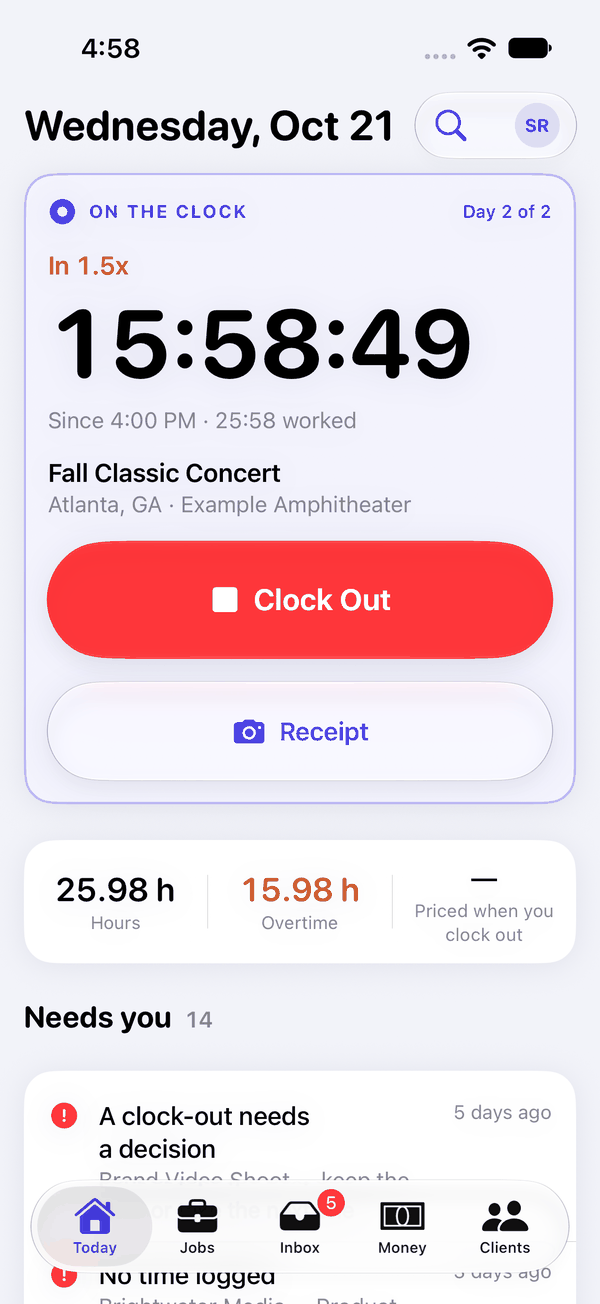
Run the show day from your iPhone: the call, the clock, and the requests that come in while you're out.
It's the same account as the web, with the same words. To get it, see Getting in.
The five tabs
- Today: the call or the running clock, what needs you, the week, and the money line.
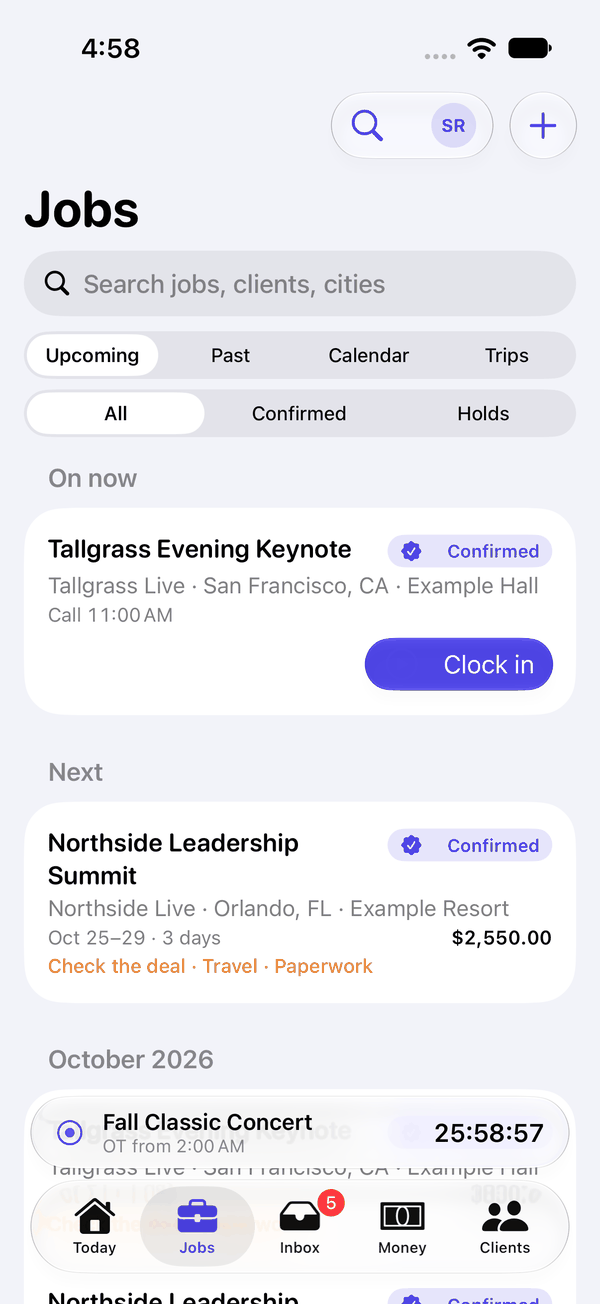
- Jobs: Upcoming, Past, Calendar and Trips.
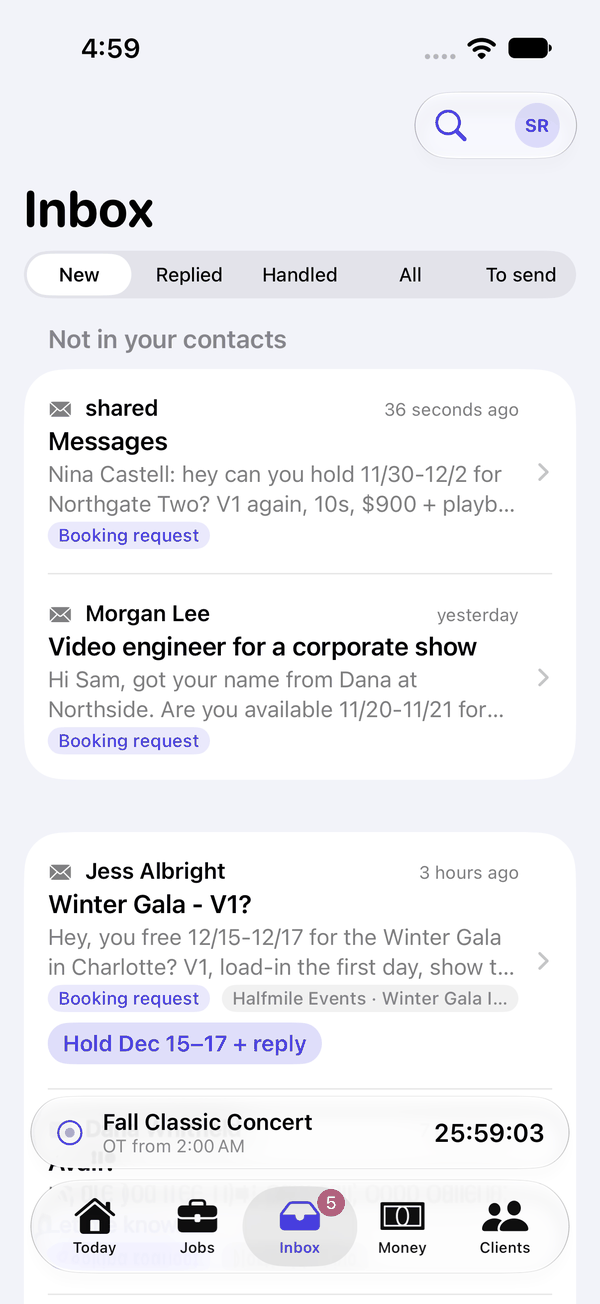
- Inbox: New, Replied, Handled, All, To send and Arrived.
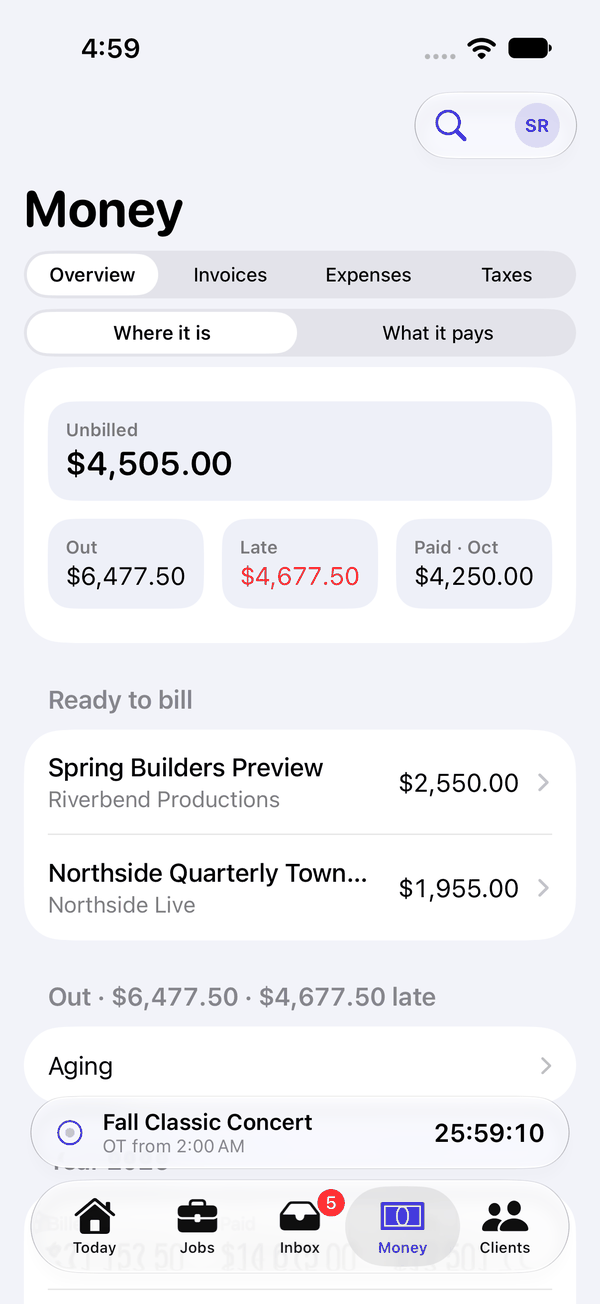
- Money: Overview, Invoices, Expenses and Taxes.
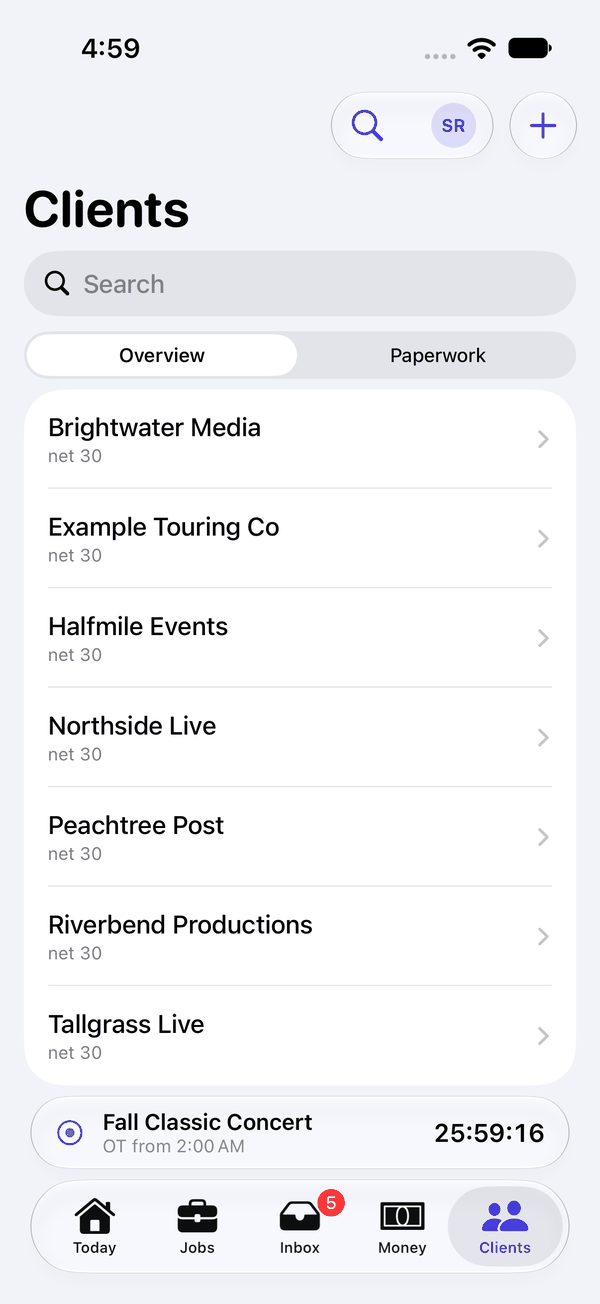
- Clients: Overview and Paperwork.
Each tab's pages are along its top.
On a job: Add a drive on its Expenses, a hold's rank and release by in Status, and on a second hold They want to book, which drafts the note in To send. Nothing is sent from the phone.
Find and the account
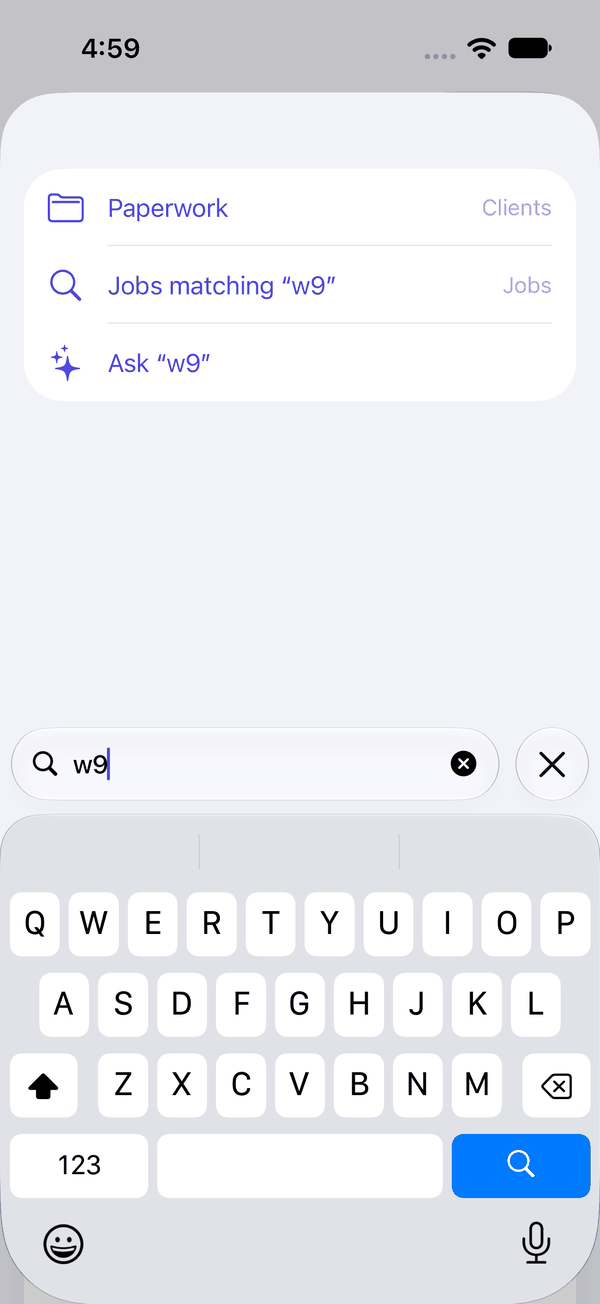
Find, the magnifying glass on every tab, finds pages, tools and settings by name, including the words a newcomer might try, such as "w9". Stats is in Find.
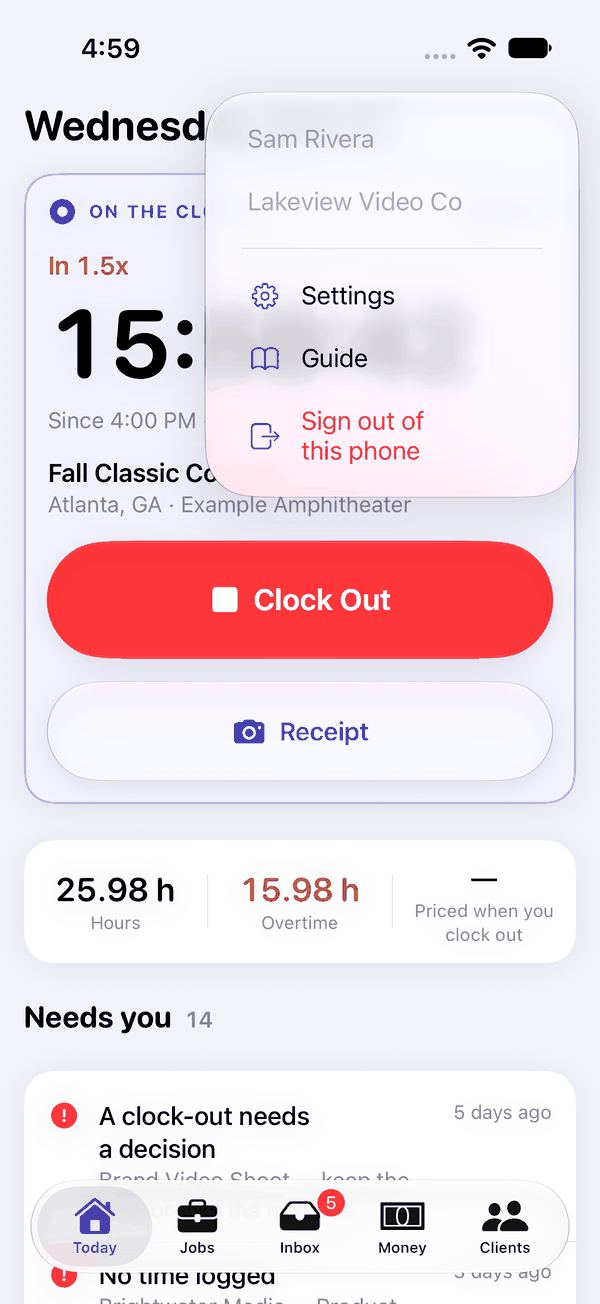
The button with your initials, on every tab, shows your name and business, Settings, Guide, and Sign out of this phone. Settings has the same groups and names as the web's.
Widgets, the Live Activity and the Watch
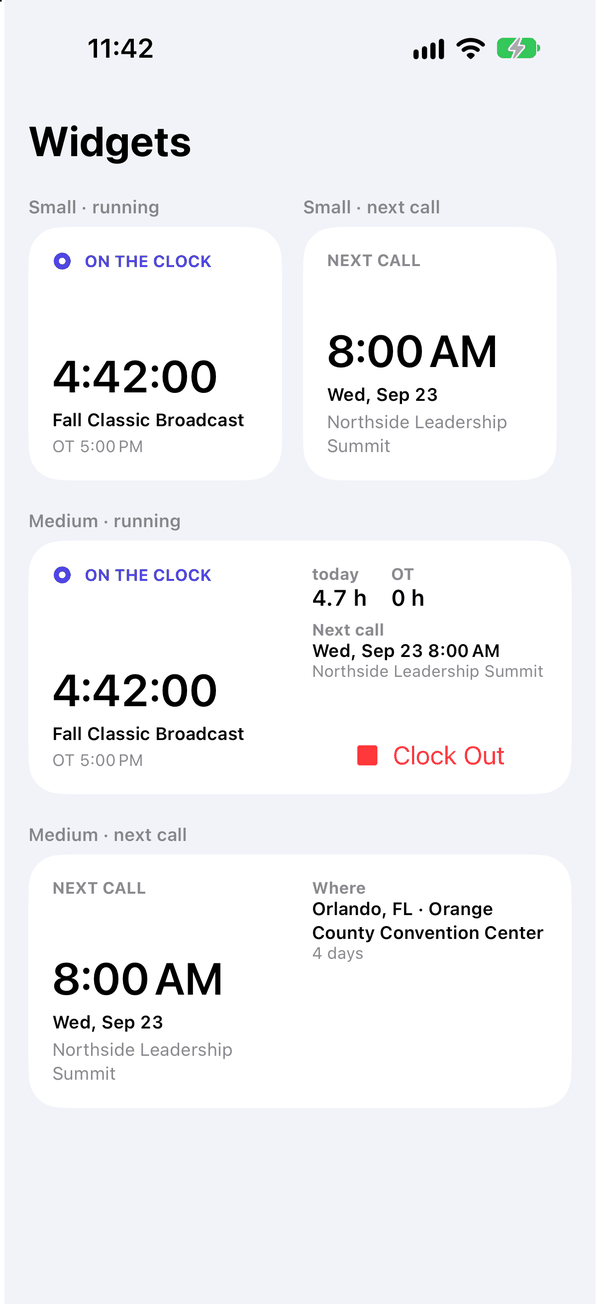
The widgets show your next call, and today's hours and overtime. The medium widget and Control Center can clock you in and out.
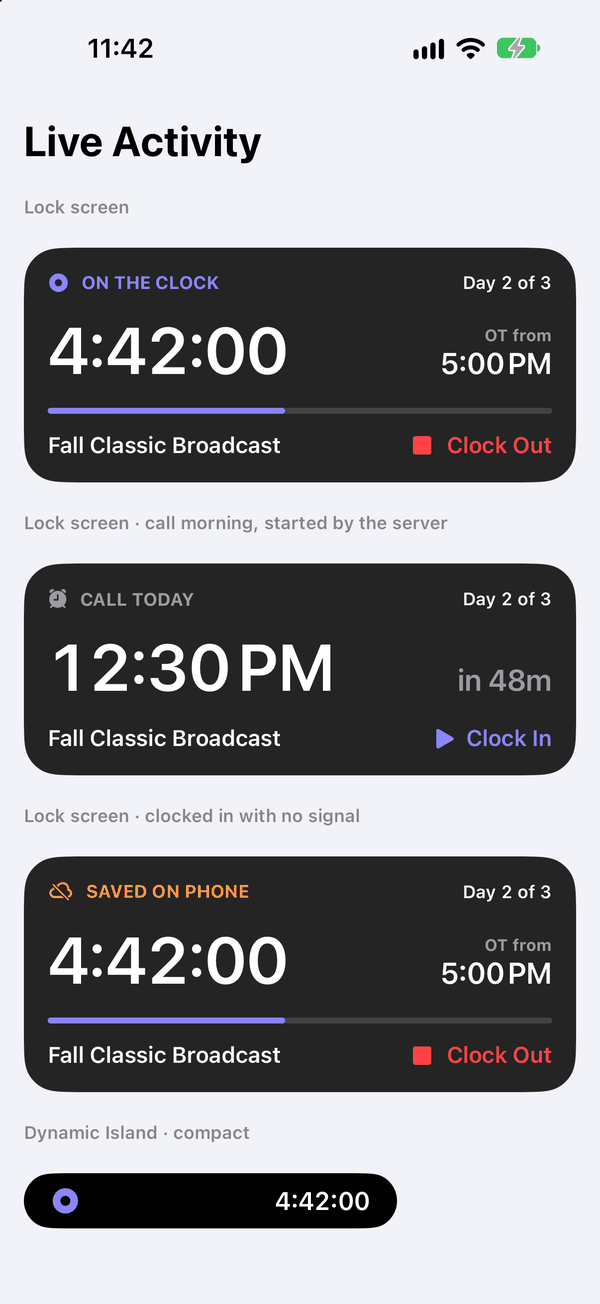
While the clock runs, a Live Activity on the lock screen and in the Dynamic Island shows the time worked, when overtime starts, and Clock Out.
The Watch app signs in through your iPhone. It shows the running clock with Clock Out, or the next call with Clock In and I started at call, plus today's hours and the jobs coming up.
None of them ever shows money, rates or anyone's contact details.
Siri and Shortcuts can clock you in, clock you out, and tell you your next call.
With no signal
The clock and your drives work offline. Clock in, pause, clock out and log a drive; the phone keeps them and sends them when it has signal. If the server turns one down on arrival, the phone says so, with Retry, Move to job… for time or Make it General for a drive, and Discard.
Opened with no signal, the phone shows the last Today it had, marked no connection, and so do the widgets. Anything else you change needs a connection; without one it doesn't go through, and the phone tells you.