Guide · 1 of 11
Getting in
Make your account from an invite, then sign in with your email and password on the web and the phone.
GigCue is in an invite-only beta, so an account needs an invite.
The invite
The invite comes by email, from GigCue, with a Sign up button. It works for the address it was sent to, and the email says how many days it's good for.
No invite yet? Request an invite on gigcue.app, and it comes to your email as spots open.
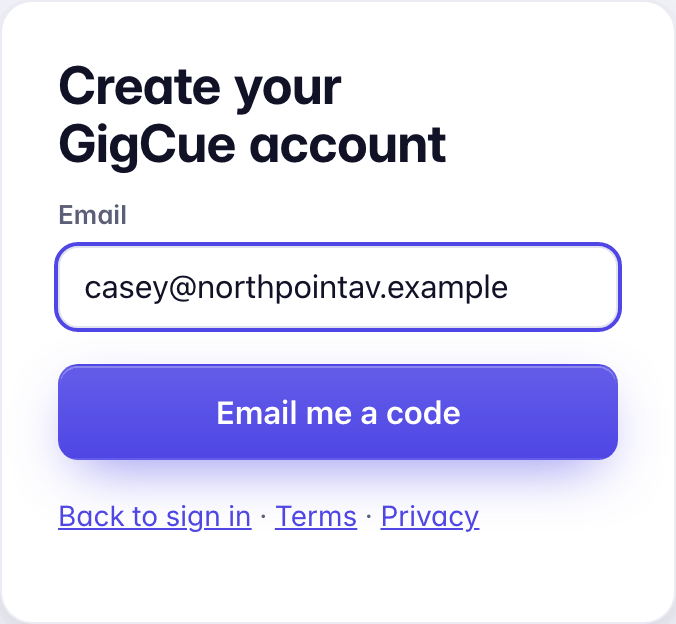
Sign up opens Create your GigCue account. Type your email and press Email me a code.
Your password
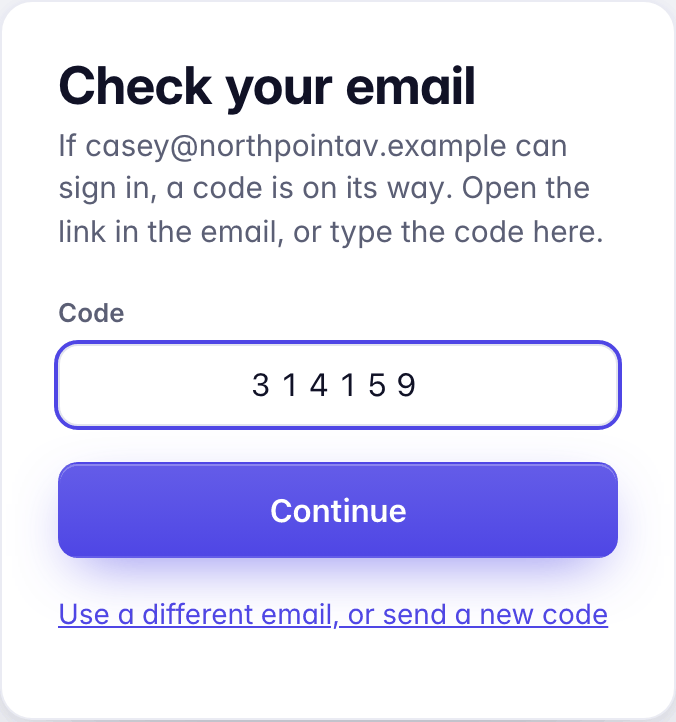
GigCue emails you a six-digit code and a link. Type the code on Check your email and press Continue, or open the link. Either works once, for 15 minutes.
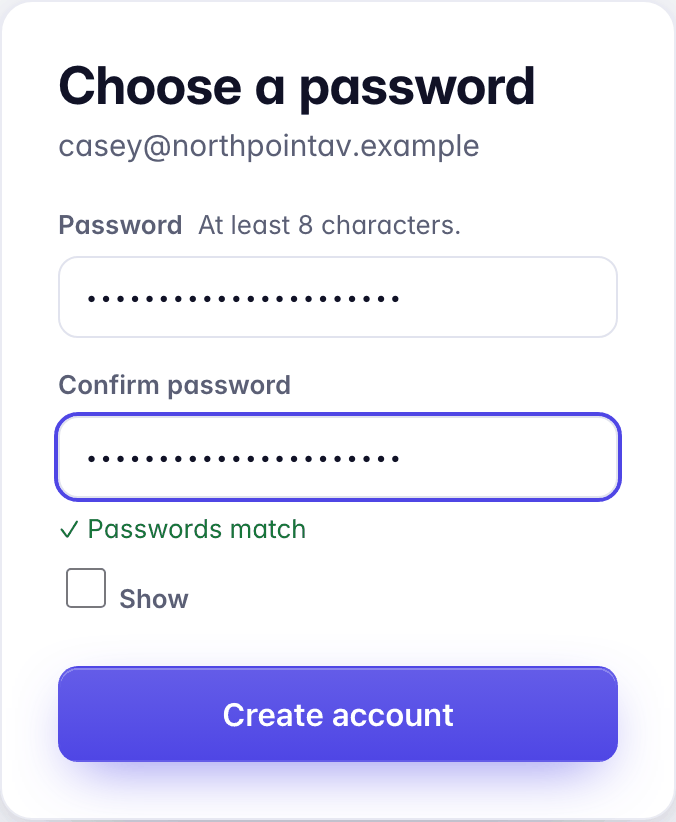
Then Choose a password: at least 8 characters, typed twice. Passwords match shows when the two agree, and Show lets you see what you typed. Create account makes the account and opens the welcome.
The welcome is ten short screens. See The welcome, screen by screen.
A second step
MFA starts off. To turn it on, open Settings › Security. Under MFA you can turn on Code by email, add an Authenticator app, or add a Passkey. With more than one on, choose the Default method.
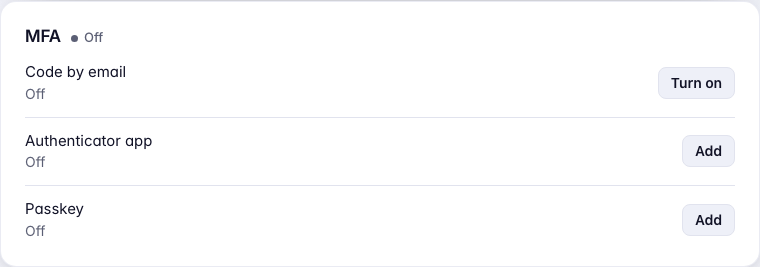
Once an authenticator app or a passkey is on, you also get recovery codes. Each one works once, in place of the second step. See Help.
With MFA on, GigCue asks for the second step after your password. Try another way lists the other methods you have, and Use a recovery code. On a computer of your own, tick Remember this browser for 30 days.
The phone
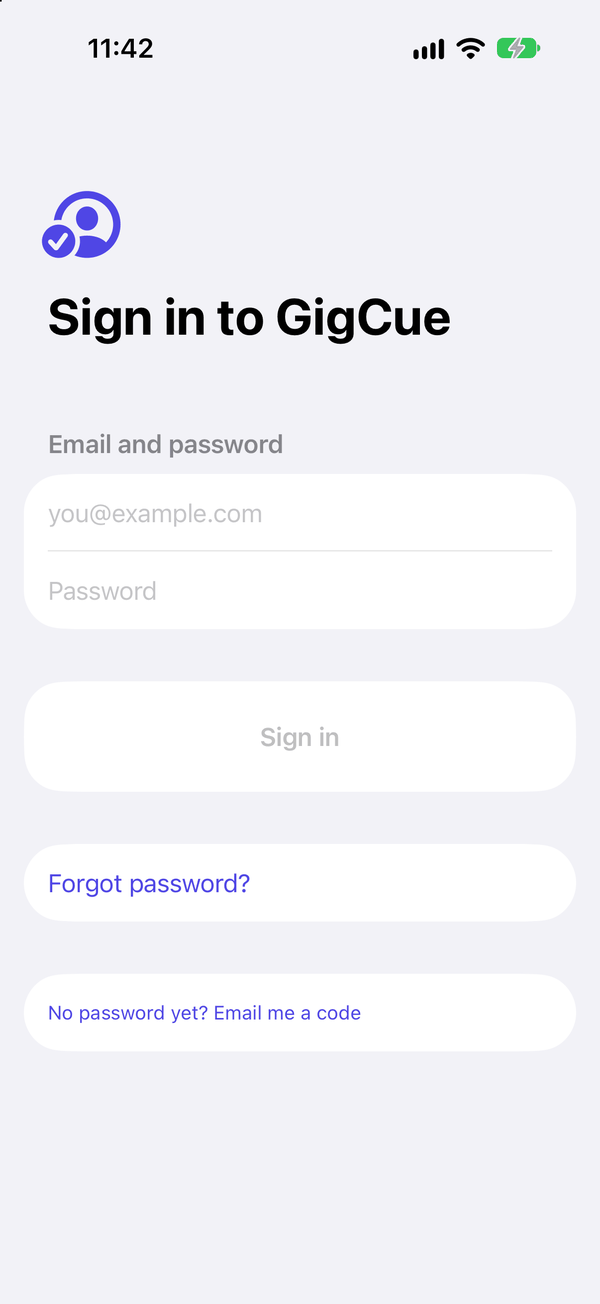
GigCue for iPhone is on TestFlight. Your invite goes to the email you signed up with: install TestFlight from the App Store, open the invite, and sign in with the same email and password.
If MFA is on, the phone asks for the second step too: a code from your authenticator app, a code by email, or a recovery code. The phone can't use a passkey yet, so if a passkey is your only second step, add one of the others on the web first.
Another computer or phone
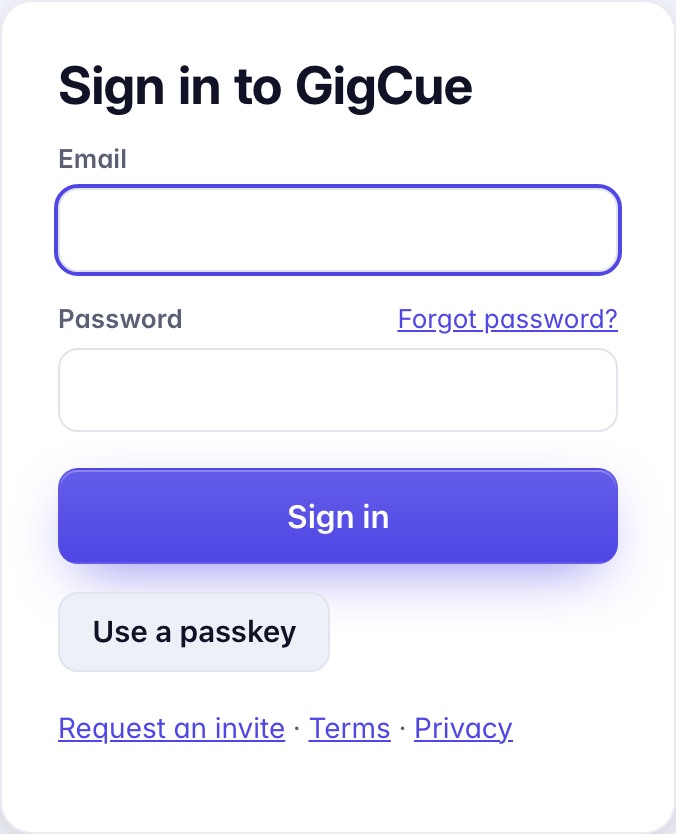
Go to gigcue.app and Sign in with the same email and password, then the second step if it's on. Forgot password? emails you a code to set a new one.
Settings › Security lists your Signed-in browsers and Phones, with Sign out beside each one.