Guide · 6 of 11
Show day
Clock in at call, wrap at the end, and GigCue works out the overtime from your deal.
The call
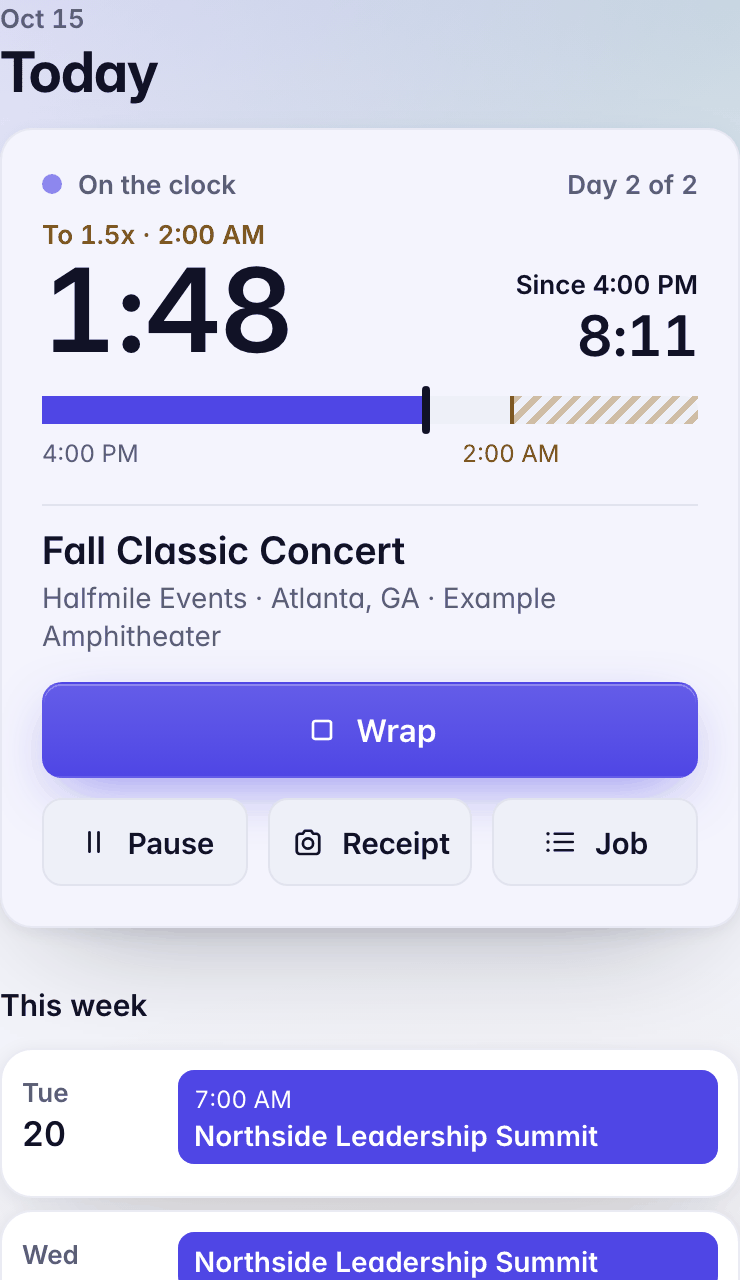
On a call day, Today leads with the job and Clock in. Once the clock runs, Today shows On the clock, the day of the run, the time worked, and Wrap, Pause, Receipt and Job.
Clock in and wrap
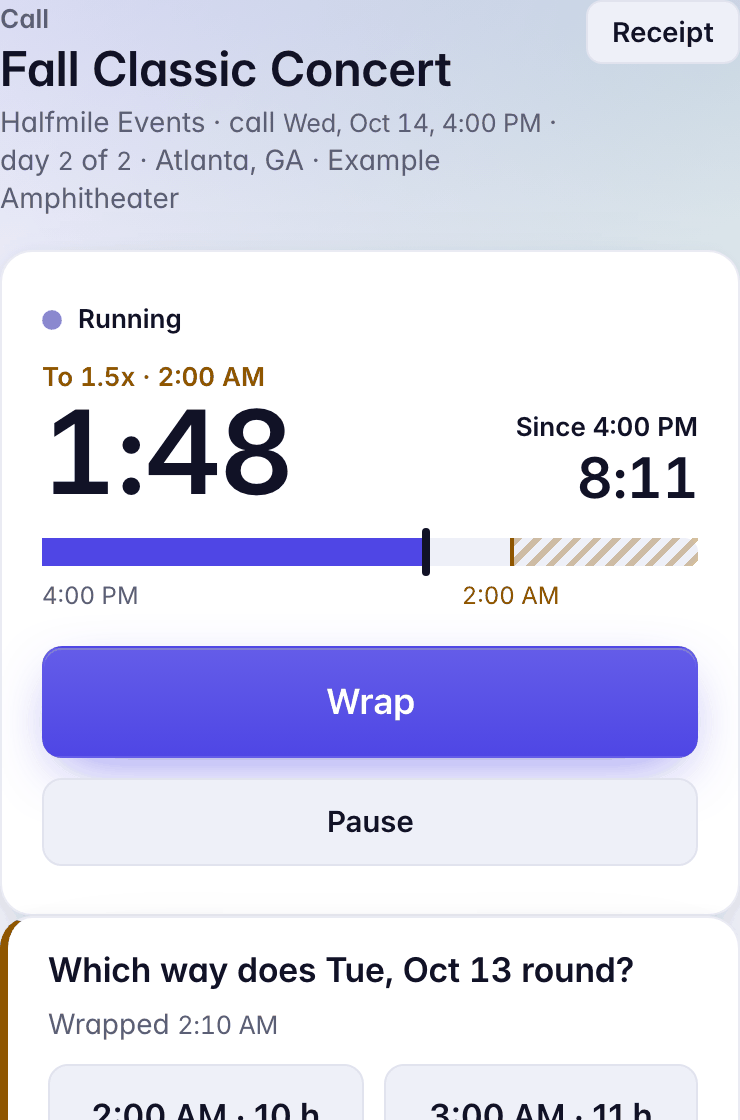
The timer page has Start, Pause and Wrap. Wrap asks once (Wrap …? Ends the day.), then ends the day's time.
Clock in before the call and your time still counts from the call. The entry shows what the clock said beside it.
No signal? The timer keeps your clock-ins, pauses and wraps (Working offline) and sends them when you're back. The phone does the same.
What the running clock reads
- To 1.5x · 2:00 AM, and the time left until overtime.
- Since 4:00 PM, and the time worked so far.
- A bar from the call to the end of the day, filling as you go.
Started at call
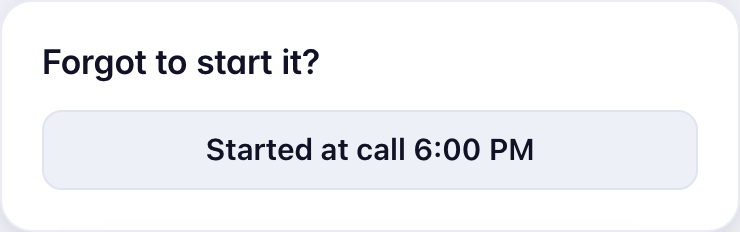
Forgot to clock in? Once the call has passed, on the call's own day, with nothing logged, the timer page offers Started at call. It starts the clock from the call. You won't see it on a travel day, or once the day has time on it.
Which way does it round?
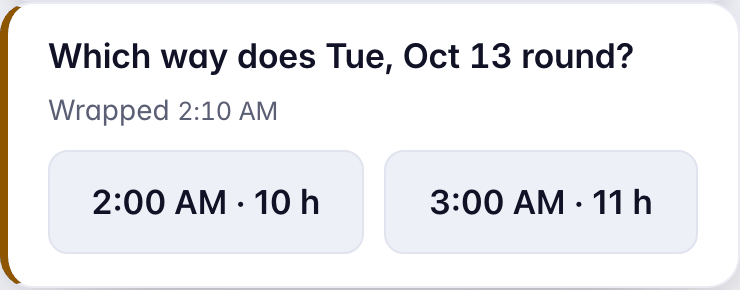
A wrap a few minutes past the hour, or typed time off the hour, gets one question on the timer page: Which way does Tue, Oct 13 round? Pick the earlier or the later hour. Today's Needs you lists it as A clock-out needs a decision until you do.
Adding time by hand
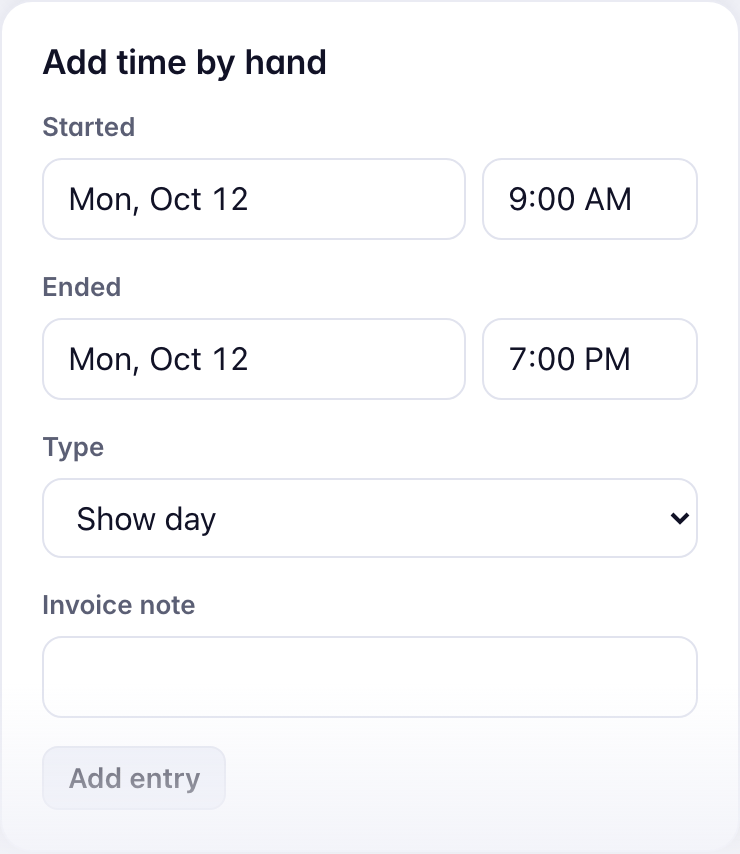
Add time by hand, on the timer page, starts with the day's call and wrap filled in. Change the times, pick the Type (show day, travel day, setup day, shop, meeting, admin, remote support), add an Invoice note if you like, and press Add entry.
A day with no time on it shows in Today's Needs you as No time logged.
Moving the call
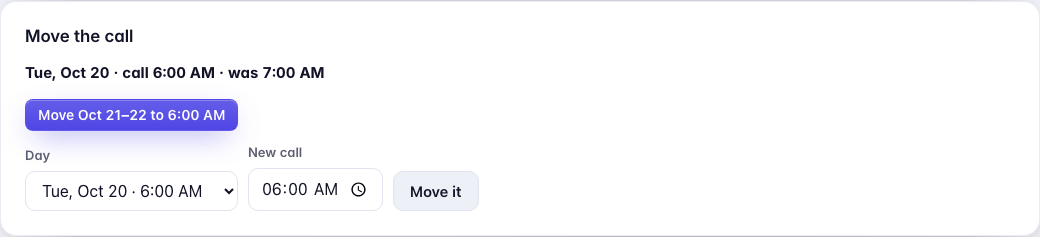
On the job page, Move the call moves one day's call: pick the Day, type the New call, press Move it. On a run it then offers to move the later days to the same time, in one press. A run's dates change in Days.
Wrapped
A job wraps by itself once its last day is past, its time is in for every billed day, nothing runs on it and no rounding question waits. Then it's ready to invoice: see Getting paid.