Guide · 3 of 11
Your address, and forwarding
Send your booking mail to your GigCue address, one email at a time or everything at once, and GigCue reads it for you.
You never open that mailbox yourself.
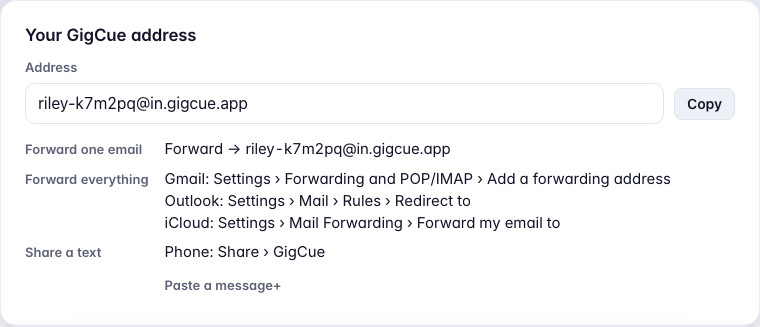
Your GigCue address
It looks like [email protected]: your account's name, a short code, and @in.gigcue.app.
Where it is:
- on the welcome's Mail screen;
- on Today and in Inbox, on a card that stays until your first message arrives, and after that as one line at the foot of Inbox;
- in Settings › Mail and texts;
- on the phone, in Settings › Mail and texts, with Copy and Share.
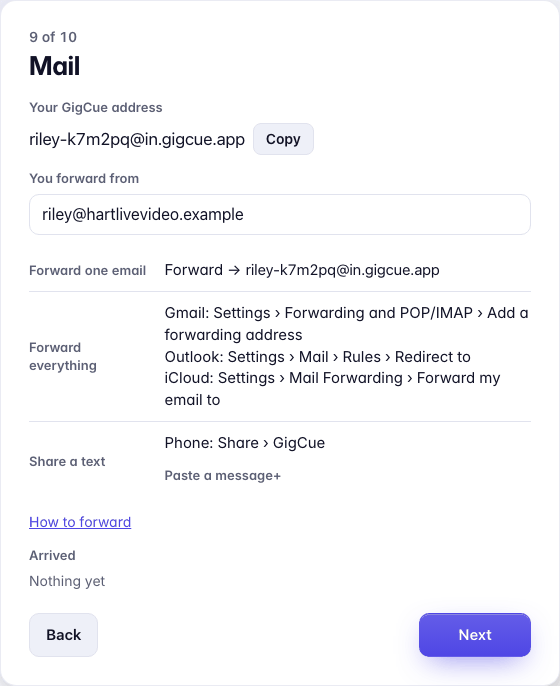
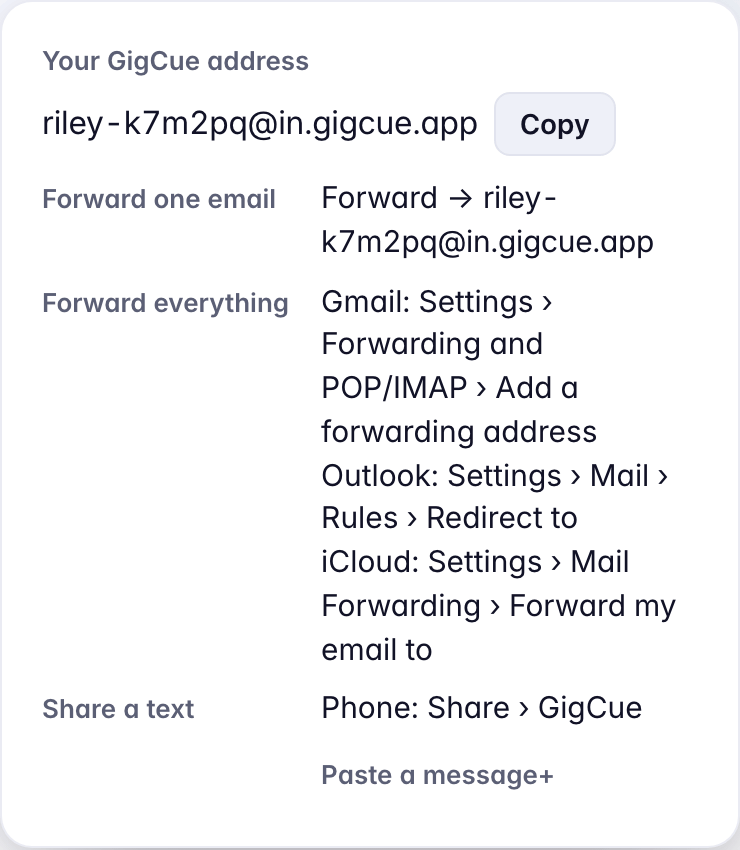
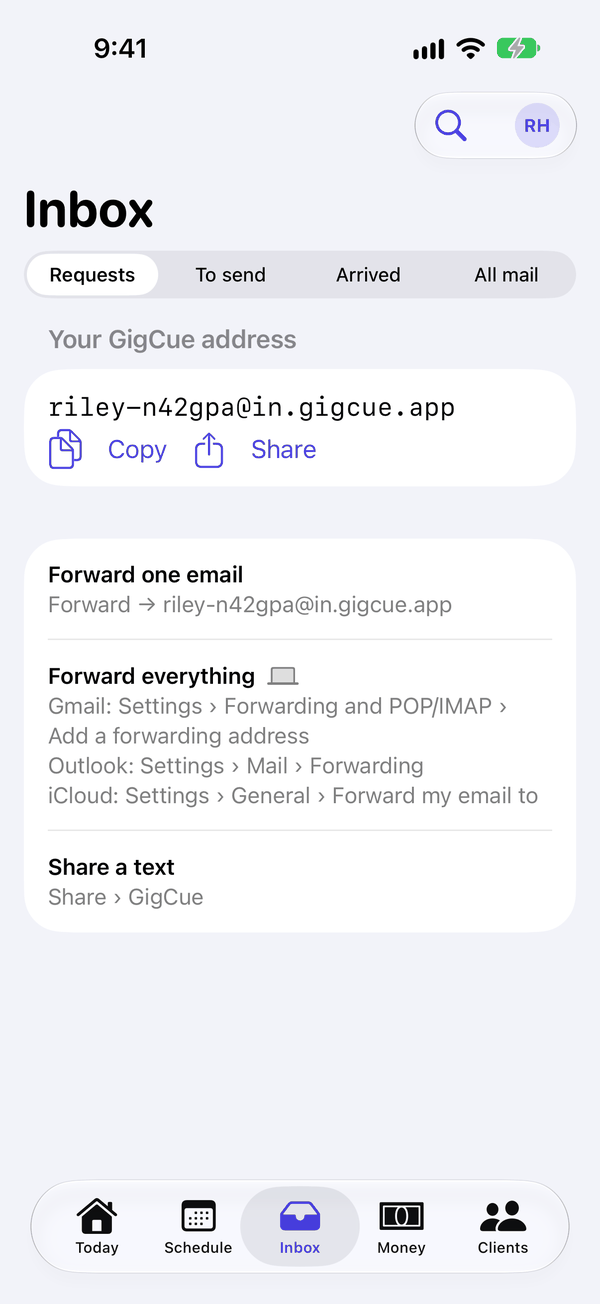

GigCue reads new mail every five minutes. Check now, at the top of Inbox, reads it at once.
Three ways in
Forward one email. Press Forward in any mail app, on any device, and send it to your address. Use it for a request already in your inbox: forwarding everything only sends new mail.
Forward everything. Your mail service sends GigCue a copy of every new message. Setting it up takes a computer, once. The steps for Gmail, Outlook and iCloud are below.
Share a text. On the phone, Share › GigCue from Messages. On the web, Paste a message and press Add, under the address.
Forward one email
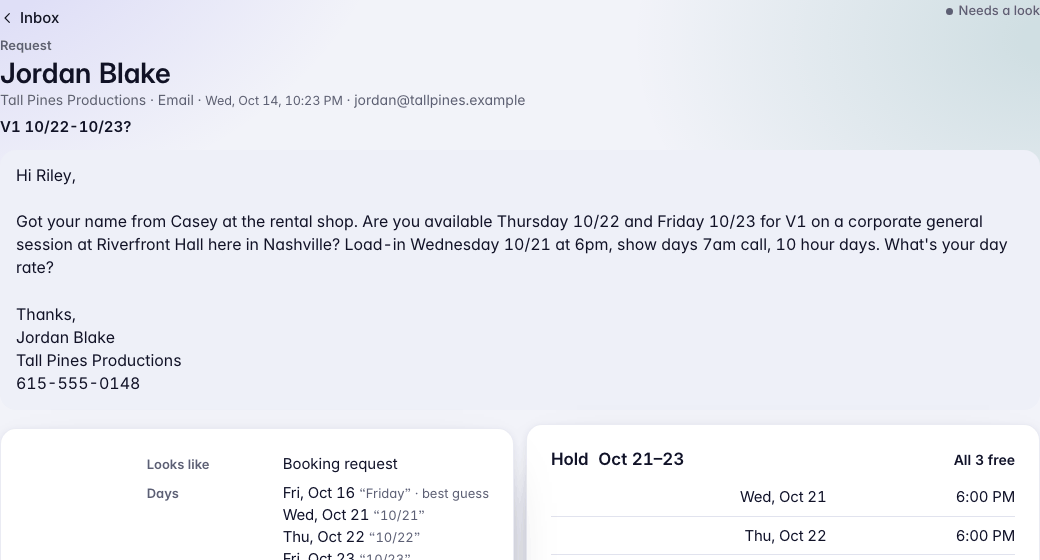
GigCue reads a forwarded email as the message inside it: who wrote it, their subject, and the day they sent it.
It can do that only when the forward comes from an address it knows is yours: the email you sign in with, your billing email, and the addresses under You forward from (on the welcome's Mail screen, and in Settings › Privacy).
Forward from another address and the request reads as if you'd sent it, under Not in your contacts, with your own name on it. Add that address to You forward from (separate several with commas) and forward the email again.
Forward everything from Gmail
Gmail's forwarding is on its website, not in the Gmail app, so do this on a computer.
- In Gmail, click the gear, then See all settings.
- Open Forwarding and POP/IMAP.
- Click Add a forwarding address, paste your GigCue address, then click Next, Proceed and OK.
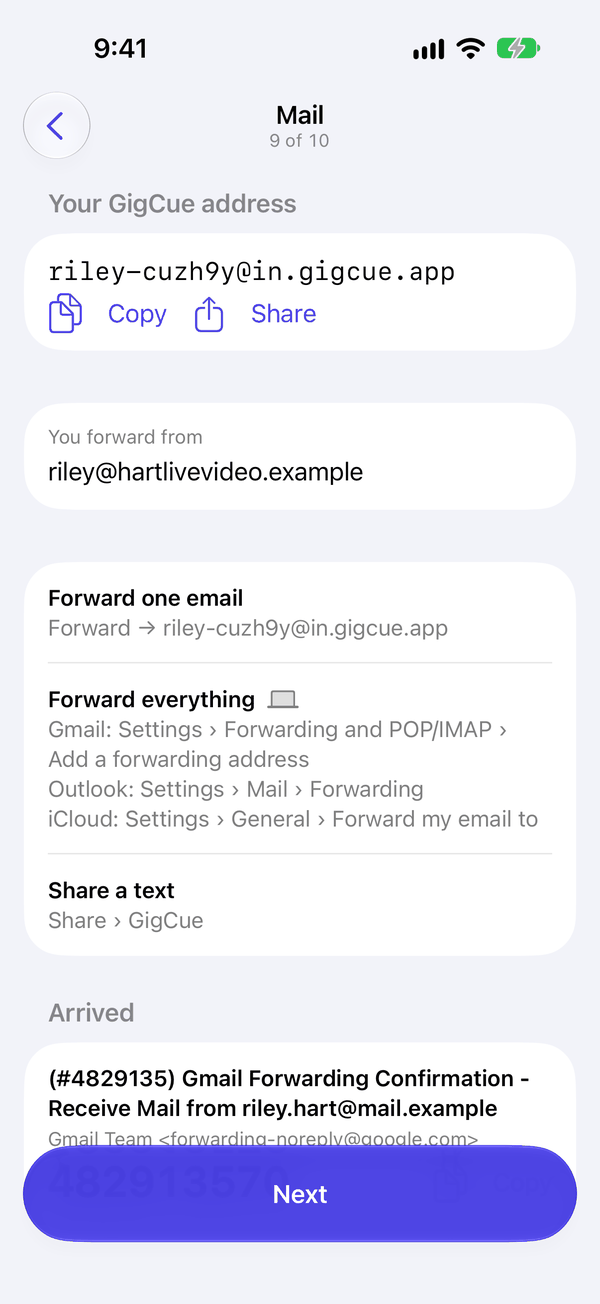
- Gmail sends a confirmation to your GigCue address. You can't open that mailbox, so GigCue shows it to you: open the welcome's Mail screen at gigcue.app/welcome/9 (it still works after the welcome). Under Arrived is Gmail Forwarding Confirmation, its code in large type, and Confirm forwarding in Gmail.
- Click Confirm forwarding in Gmail, and confirm on Google's page.
- Go back to Gmail, refresh the page, and open Forwarding and POP/IMAP again.
- Choose Forward a copy of incoming mail to and your GigCue address. Keep Gmail's copy in the inbox.
- Click Save Changes.
Nothing is forwarded until step 8. After that Gmail forwards every new message except spam. Mail already in your inbox stays put; forward the ones you need by hand.
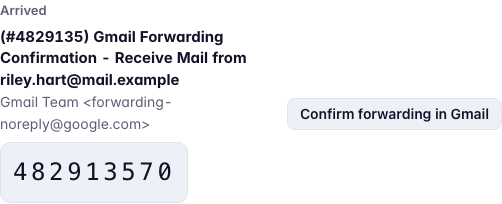
On the phone, the Mail screen shows the code with Copy, but not the link. Use the web for step 5.
Only mail from your bookers
Want GigCue to see only mail from people you work with? Use a Gmail filter instead of step 7. Do steps 1 to 5 first: Gmail forwards only to a confirmed address.
- Click Show search options in Gmail's search box.
- In From, type your bookers' addresses or domains, separated by OR.
- Click Create filter, choose Forward it to and your GigCue address, then click Create filter again.
Mail from someone new won't reach GigCue this way; forward their first email by hand. To have ride receipts read, add uber.com OR lyftmail.com to the filter (see Receipts and trips by mail).
Google's own steps: Automatically forward Gmail messages to another account.
Outlook and Microsoft 365
Use a rule that redirects, not Outlook's Forwarding page. Microsoft says forwarded messages appear to come from you; a redirected one keeps its sender, and GigCue needs the sender to know who's asking.
- In Outlook on the web (Outlook.com, or your work Outlook in a browser), click the gear, then Mail › Rules.
- Click Add new rule and name it.
- For the condition, choose Apply to all messages, or From with your bookers' addresses.
- For the action, choose Redirect to and your GigCue address.
- Click Save.
Microsoft's own steps: Use rules to automatically forward messages, and Turn on or off automatic forwarding in Outlook.com.
A work mailbox someone else runs
Many companies block automatic forwarding to outside addresses. If yours does, the rule saves but nothing arrives, and the bounce says your organization doesn't allow external forwarding. Ask whoever runs your mail to allow your GigCue address, or forward requests one at a time, which isn't blocked. Either way, add the work address to You forward from.
iCloud Mail
- At icloud.com/mail, click the gear at the top of the mailbox list, then Settings.
- Choose Mail Forwarding.
- Tick Forward my email to and paste your GigCue address.
- Leave Delete messages after forwarding off, so iCloud keeps your copy.
To forward only some mail, iCloud's Rules can forward messages from senders you choose.
Apple's own steps: Automatically forward email in iCloud Mail on iCloud.com.
What happens to each message
GigCue sorts mail by who sent it before it reads anything else.
People you work with. Mail from a contact on one of your clients goes to Inbox. A request (dates, a booking, a confirmation, a call that moves) is under New. Anything else is under All.
Someone new. Mail from an address GigCue doesn't know is kept only if it reads like work: someone asking to book you, pay you or move a day. It shows at the top of New, under Not in your contacts. Add them as a client, or to one you have, and from then on their mail comes in like anyone's. Left alone, it's deleted after 30 days (Settings › Privacy › Delete new-sender mail after; 0 keeps it).
Settings › Privacy › Mail from people not in your contacts sets how wide that net is:
- Only people I already have as contacts
- Plus new senders who are clearly asking about work (the setting you start with)
- Everything from a real person
Sent by a machine. GigCue never keeps these from someone it doesn't know, whatever that setting says: newsletters, mailing lists, and mail from addresses like noreply@, info@, support@ or receipts@. A booker who writes from an address like that comes through once you add them as a contact.
Whatever isn't kept is counted. Inbox shows N dropped under Not in your contacts; open it to see how many were machine-sent and which setting keeps new senders.
Trips and rides. Airline itineraries, hotel and rental car confirmations, and Uber and Lyft receipts don't go to Inbox. See Receipts and trips by mail.
Never read. GigCue doesn't look at mail from the addresses and numbers under Settings › Privacy › Never read messages from.
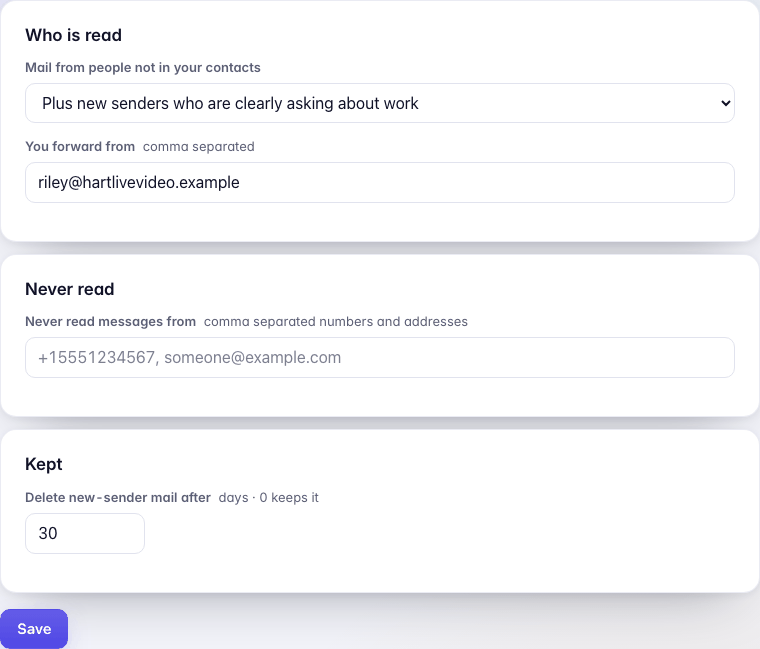
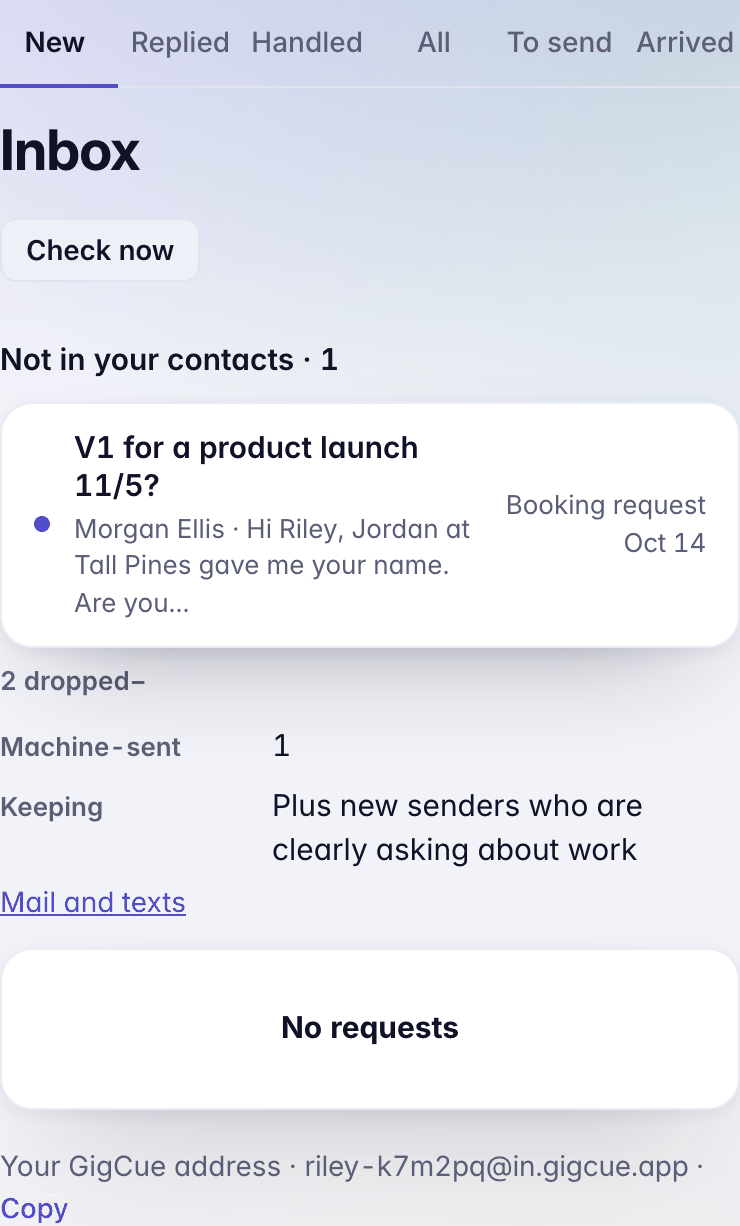
Gmail's confirmation isn't work, so it's one of the dropped. It still shows under Arrived.
What "Arrived" means
The word means two things.
On the welcome's Mail screen, Arrived is the last five messages that reached your address, whatever GigCue did with them next. It updates every 15 seconds. You see Gmail's confirmation there, and it's how you know forwarding works.
In Inbox, Arrived is trips and ride receipts that came by mail and aren't on a job yet. See Receipts and trips by mail.
Settings › Mail and texts
Your address with Copy, the three ways in, and Travel mail from: the airlines whose itineraries GigCue reads.
What GigCue never does with your mail
- It never sends anything without you. A reply it writes for you waits in To send until you press Approve and send, and you have 60 seconds to undo.
- It never touches your own mailbox. It gets copies; nothing in Gmail, Outlook or iCloud is moved, marked or deleted.
- It never reads mail from the addresses under Never read.
- It never puts a stranger's newsletter, receipt or notification in your Inbox.
GigCue keeps a copy of each message that reaches your address, as it arrived, including mail it doesn't put in Inbox. The privacy policy says for how long. When a request from one of your clients arrives, GigCue may write a reply so it's ready when you open it. It waits in To send like any other.